

EzStopLoss conditional order is a tool that allows you to place Buy/Sell securities orders with conditions you define in advance. When the order's activation condition is met, your order is automatically submitted to the FPTS system and checked against your cash/securities balance before being sent to the Stock Exchange
You can place a conditional order online via the EzTrade website or the EzTrade mobile trading application.
1. On EzTrade web online trading platform
1.1. Place EzStopLoss Order to buy/sell securities on EzTrade web online trading platform
- Log in the EzTrade Online Trading Platform of FPTS
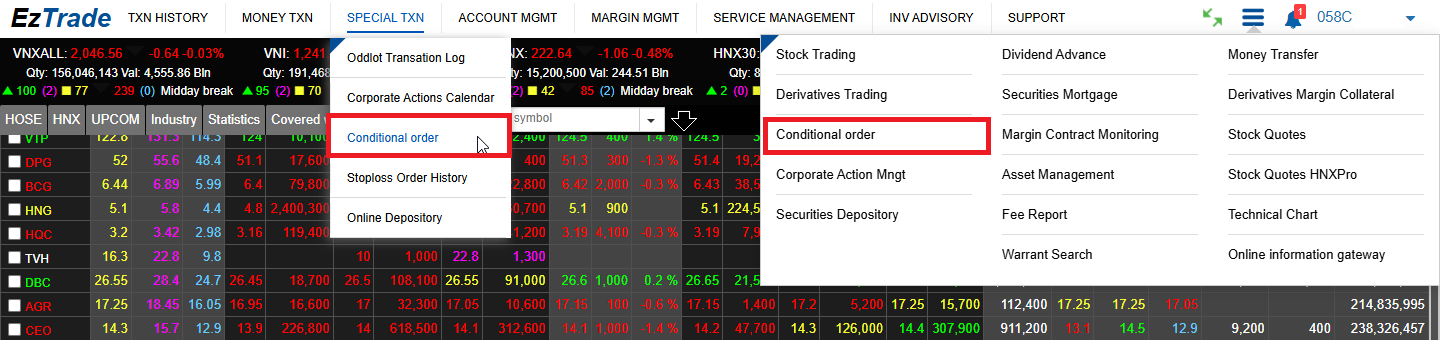
- In EzTrade, select Special Transaction (TXN), then click Conditional Order, or navigate to the Services Board to choose the service.

- On the Conditional Order screen, select the type of the order you want to place and fill in the order information.
- Select Buy/Sell - Securities symbol - Quantity - Margin type (if any)
- Set the conditions for the order: You need to choose.
- Type of condition (≤, ≥), choose at your own wish.
- Trigger price or Conditional price -> This price will be used for order activation
- Set the Execution Price (the price range in the order placing section): This price will be sent to the Stock Exchange by the FPTS system as soon as the order is activated.
There are three advanced options on the trigger price for you to choose: When the order is activated, the system will automatically base on this price type to send the corresponding price to the Stock Exchange, specifically:
+ Market price: Depending on the Stock Exchange and the ongoing trading session, the system will automatically send the order at the price of ATO/MTL/ATC.
+ Price ceiling/Upper limit price: The ceiling price is the highest allowed price of the trading day.
+ Floor price/Lower limit price: The ceiling price is the lowest allowed price of the trading day.
- Added order: After you click on “Add” button, the order will be forwarded to the Added Order section beneath.
- After the order is added, you can:
- Enter the trading password to Sendthe order immediately
- You can modify the price and quantity of the order (if you want) to keep up with the new market development.
- You can view the orders you placed in the EzStopLoss Order History.
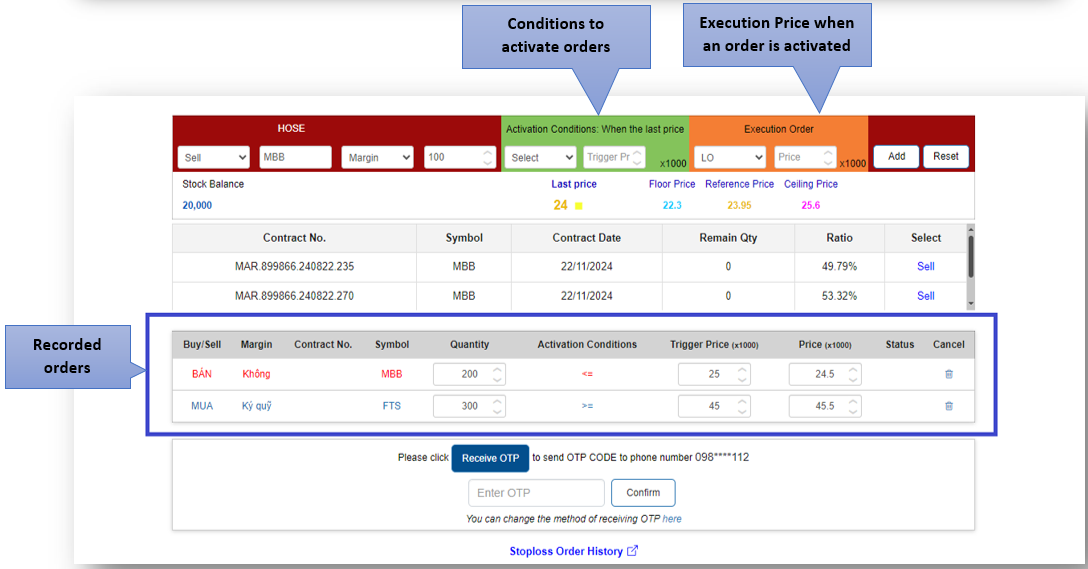
- Click Receive OTP to get the OTP code sent by the FPTS system to your registered mobile phone number or email at FPTS.
- Enter the OTP code and click Confirm to authenticate the OTP code and send the order to the FPTS system.
1.2. Look up EzStopLoss Conditional Order History
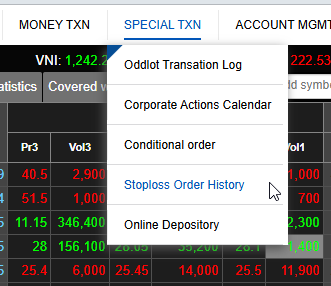
- In EzTrade, navigate Special Transaction (TXN) tab, select StopLoss Order History
- Choose the time range, securities symbol and order status (if you want) to look up the orders you placed, select Update.
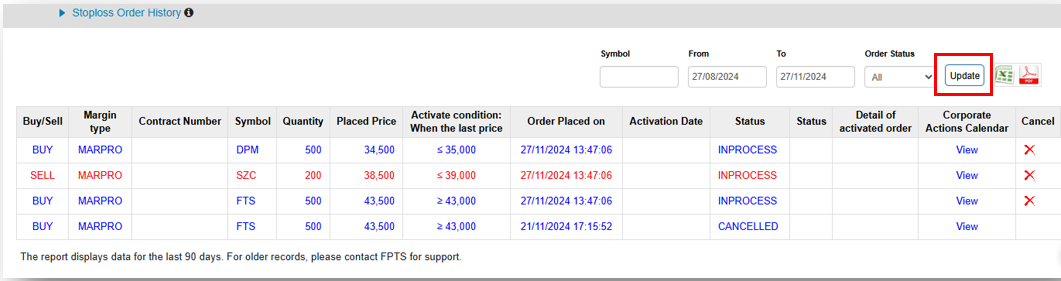
- Order status:
- Pending: The order is pending for activation.
- Successful: The order was successfully activated.
- Rejected: The order was activated but rejected by the system because it violated the eligibility of order activation (for example, the balance to the order is not enough, the placed price is out of the daily price range).
- Cancelled: The order was already cancelled.
- Expired: After three months without no activation, the Conditional Order will be expired.
1.3. StopLoss Order Cancellation
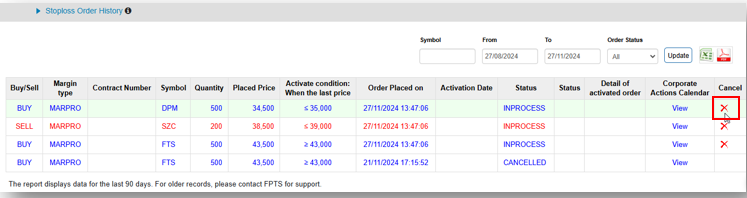
- The orders that have not been activated can be cancelled from the StopLoss Order History:
- Click on the corresponding Cancel icon of the order you want to be canceled
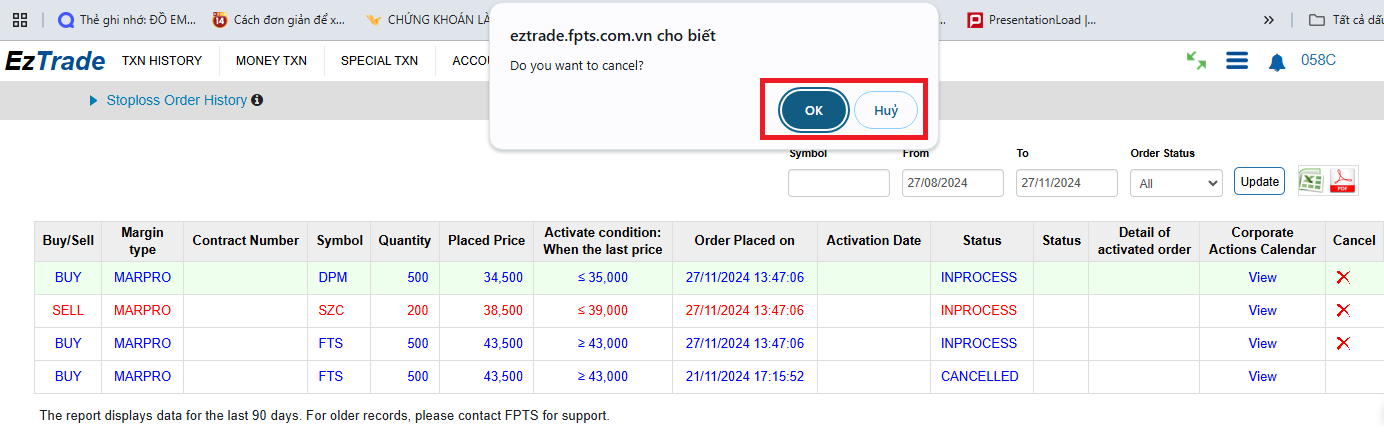
- A confirmation popup screen will be displayed for your confirmation. Click “OK” to proceed.
- After the order was canceled, the notification popup screen will display the following message:

A successfully activated order can be cancelled/modified like an ordinary order if it is not fully traded. The order is available in the Pending Order section in EzTrade.
2. On EzTrade mobile application
2.1. Placing a Conditional Order
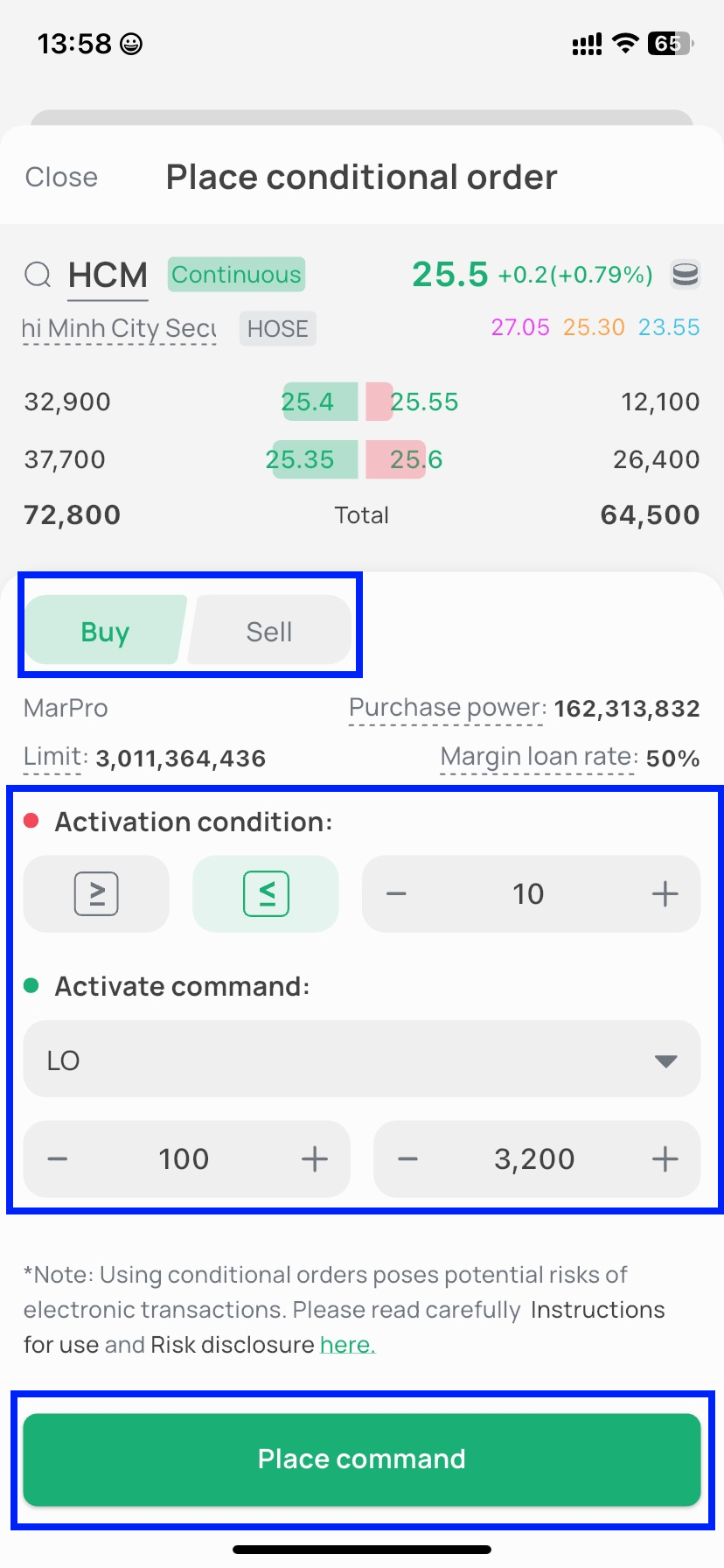
Step 1: From the Base Order-Placing screen → select Conditional Order as the order type
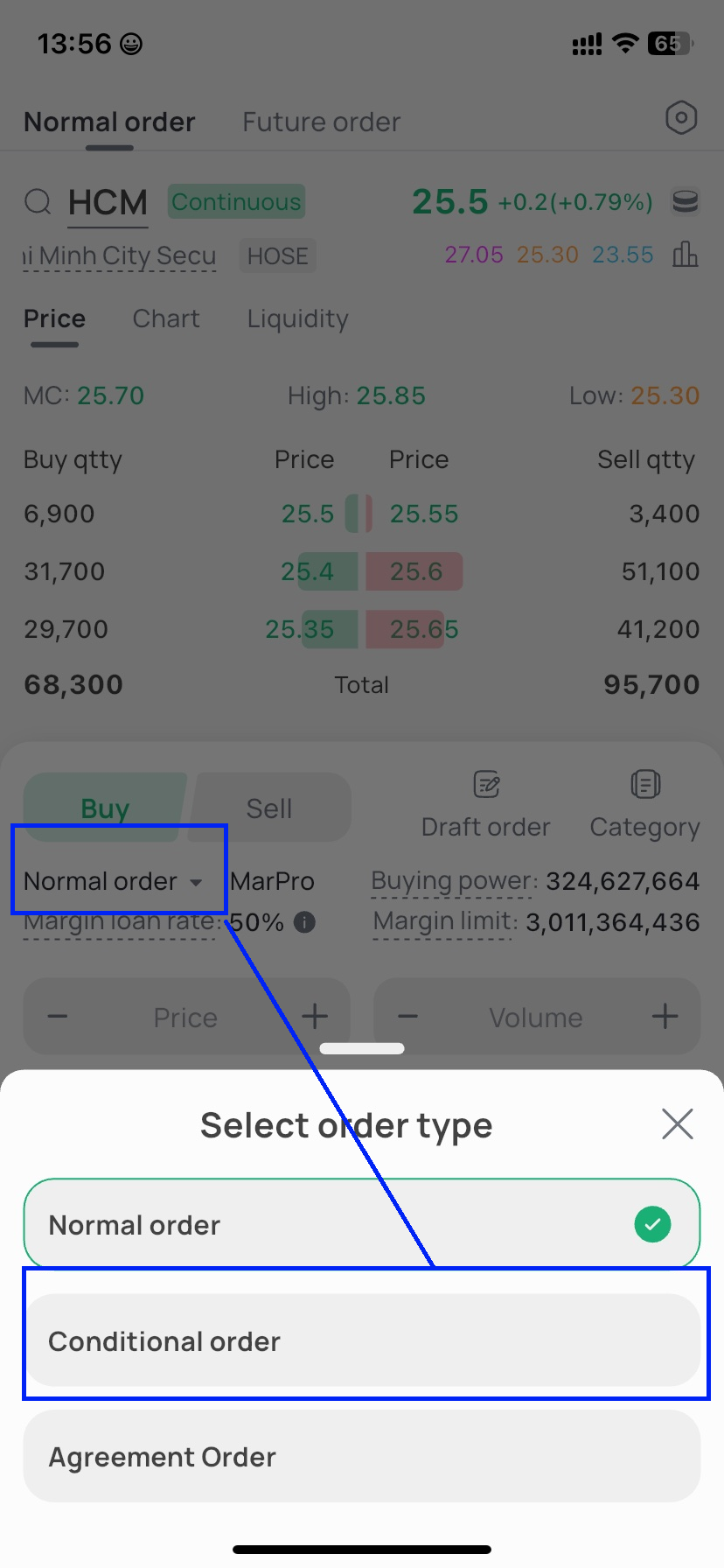
Step 2: Enter the conditional order information
- After entering the basic information for Securities Symbol, Buy/Sell Type, and Volume, you must enter:
- The order's activation condition
- Condition type: select ≤ or ≥
- Condition Price: When the most recent matched price in the market satisfies this condition, the order will be activated.
- Execution Price: this is the price the system will send to the Exchange when the order is activated.
2.2. Looking Up Conditional Order History on the EzTrade Mobile Trading Application
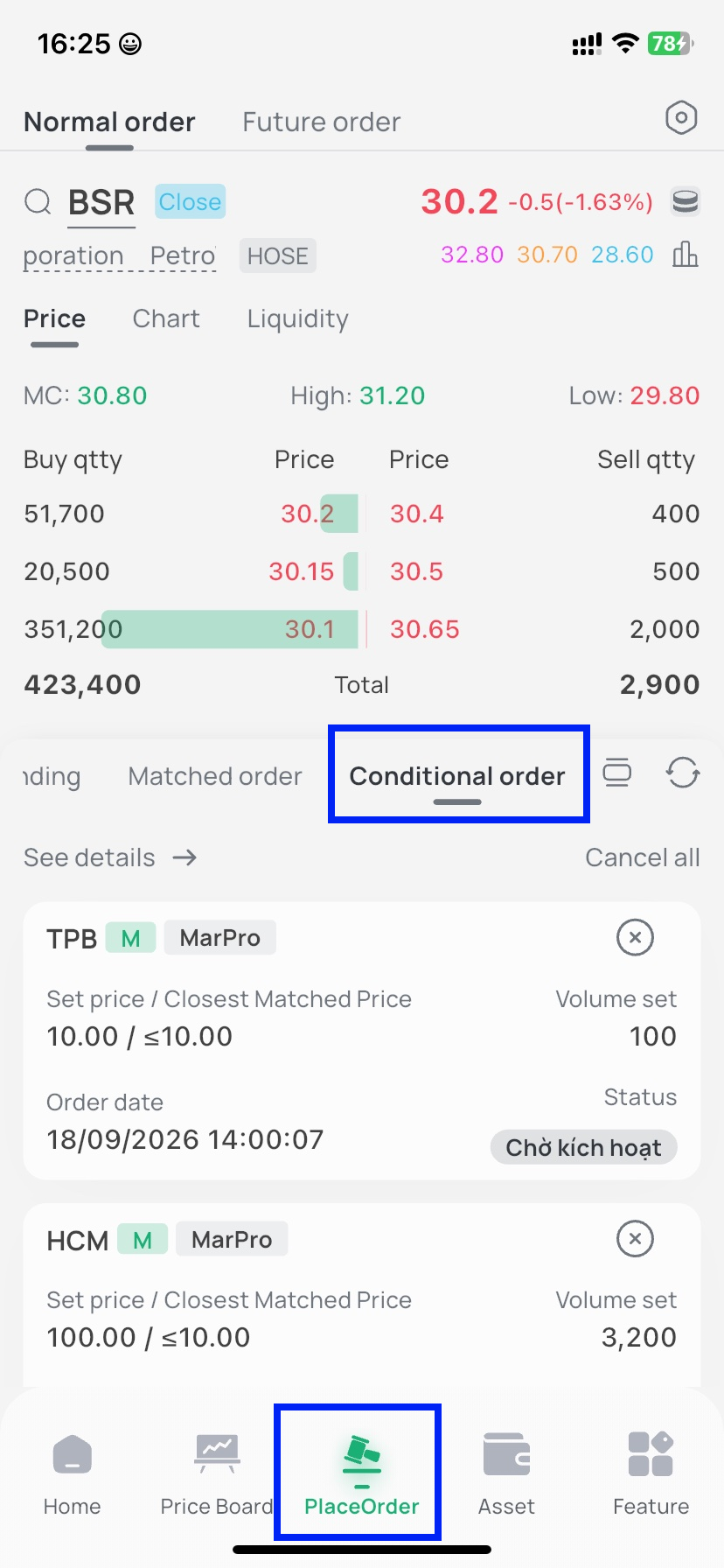
Method 1: On the Conditional Orders screen: Click the Conditional Orders tab to look up information on the orders you have placed.
The Conditional Orders tab on the order-placing screen only displays orders with the status Pending Activation.
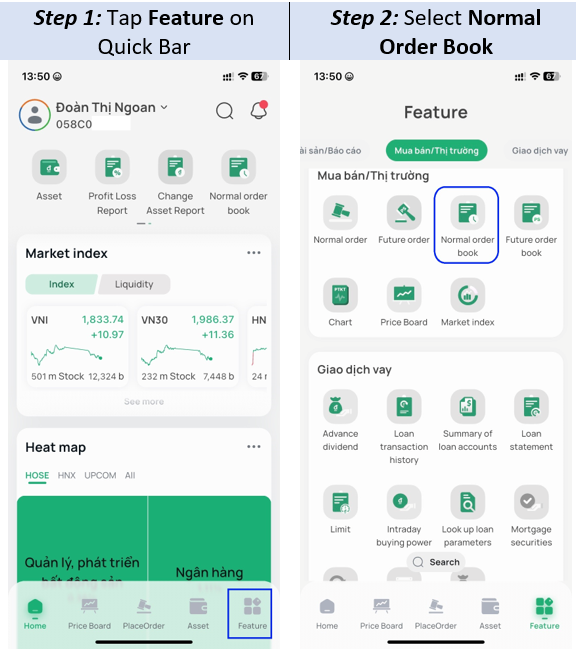
Method 2: From the Home screen, tap the Function List icon, swipe left, select Buy/Sell/Market, tap Base Order Book, then select the Conditional Orders tab.
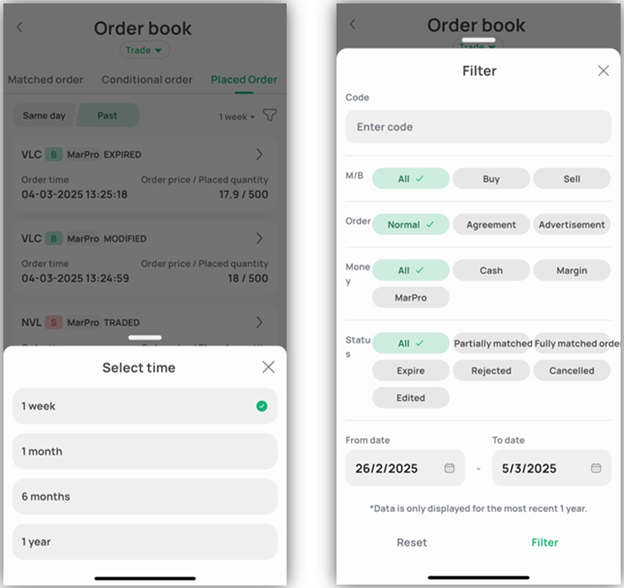
The Conditional Orders tab on the Order Book screen displays conditional orders in all statuses.
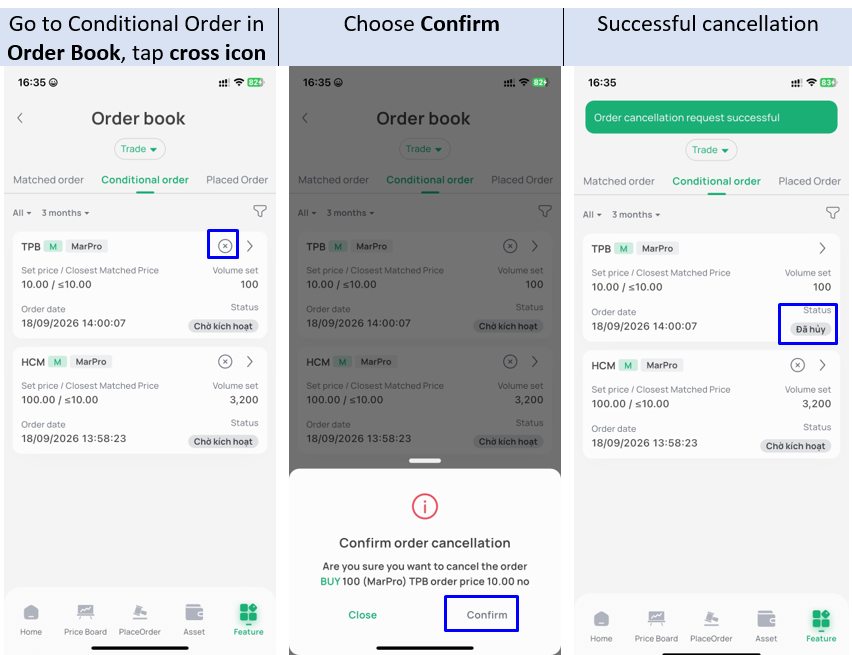
2.3. Canceling a Conditional Order on the EzTrade Mobile Trading Application
From the Home screen, tap the Function List icon, swipe left, select Buy/Sell/Market, tap Base Order Book, then select the Conditional Orders tab. On the Conditional Orders screen, you can Cancel orders that are pending activation.