

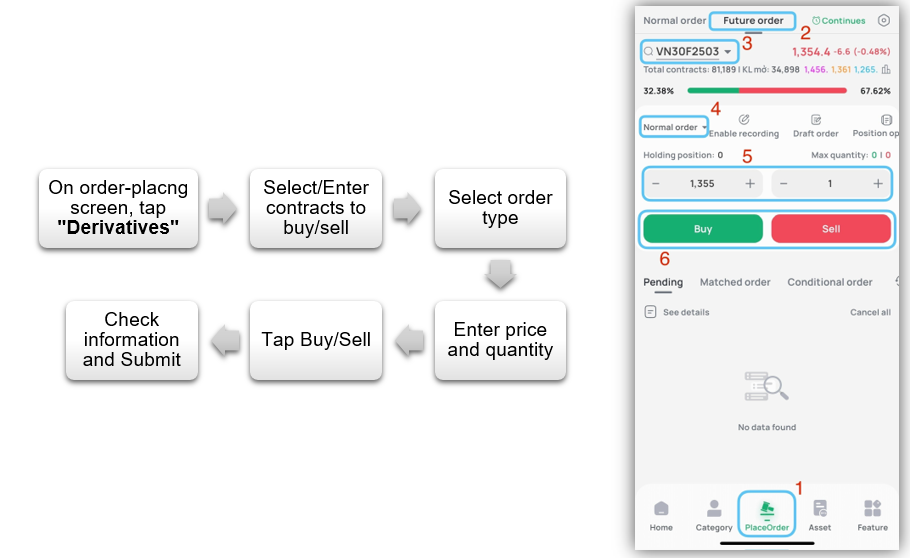
Please follow these steps to place a regular derivatives order via the EzTrade online trading application:
* Order-recording function
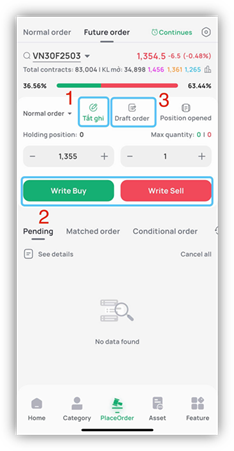
- Step 1: Tap on icon  to switch on/off the order-recording function
- Step 2: After entering required informationm, tap on Write Buy/Write Sell
- Step 3: The order will be recorded in the Pending List (icon  )
)
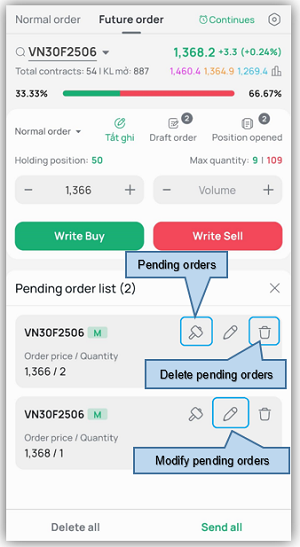
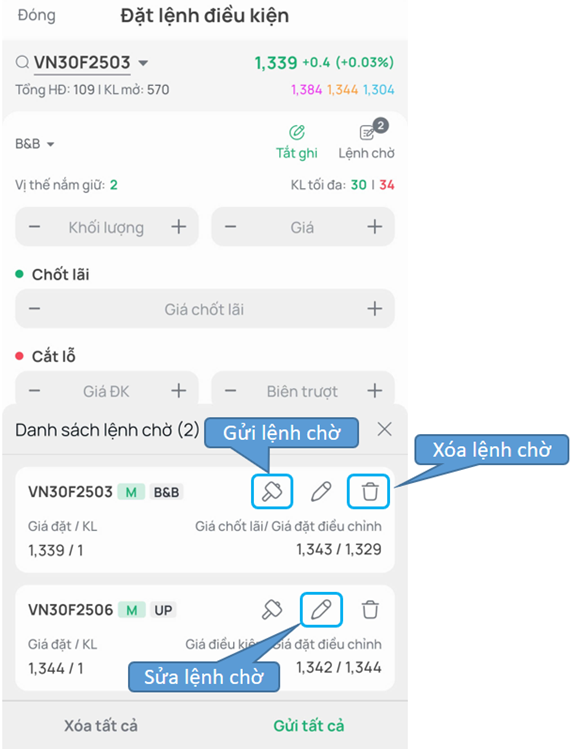
- In the Pending Order list, you can cancel or modify the pending order, delete it or send it to the Stock Exchange
* Opened positions
From the Place Order section, tab on the icon  , the Position window will open:
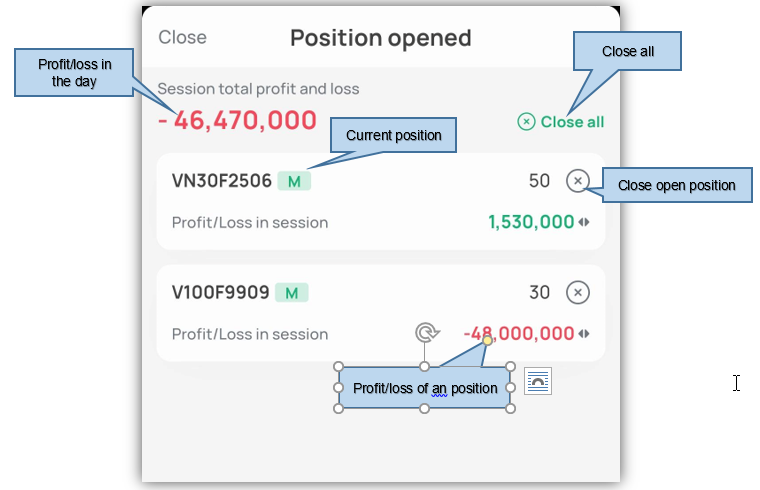
* Order book in the Place Order section
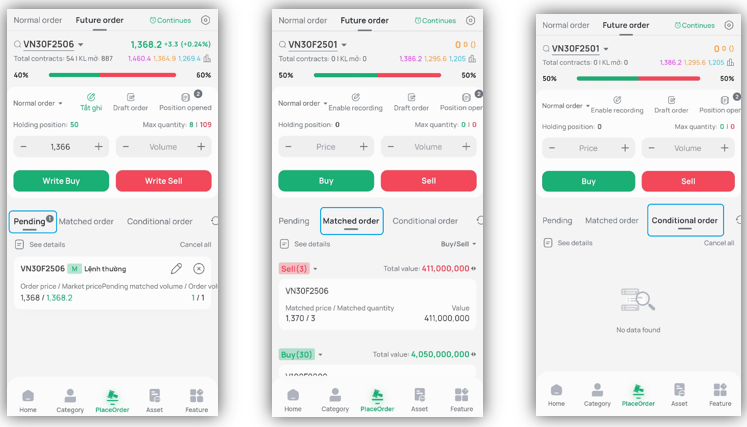
- Pending orders: Consisting of untraded orders, partially traded orders, and pending OCO, B&B conditional orders.
+ Tap icon  to modify the order
+ Tap icon  to cancel the order
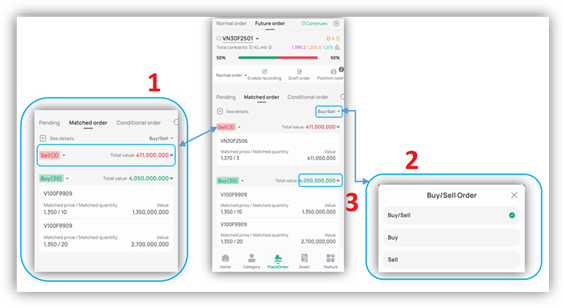
- Traded/matched orders: Consisting of fully traded orders and partially traded orders. Orders are grouped into Buy and Sell. The figure in the bracket () is the quantity of traded contracts in the day
In Traded Order tab, you can sort/filter the order book:
- Collapse/Expand the Buy/Sell order list
- Filter Buy/Sell orders
- Switch between Total quanity or Total value of traded orders
- Conditional Orders: Consisting of pending Up and Down conditional orders and Up and Down orders generated from OCO and B&B conditional orders
+ To refresh the order book, tap the icon 
+ To view details of an order, tap the icon 
* Watch market information
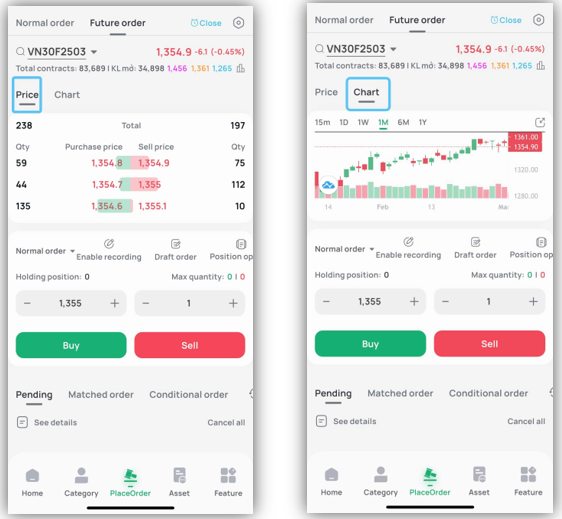
In the ordinary order section, tap Conditional Order
+ Step 1: Select Condition Order and enter required information
+ Step 2: Select Buy/Sell to go to the order confirmation screen. Check order information and tab Confirmation to proceed.
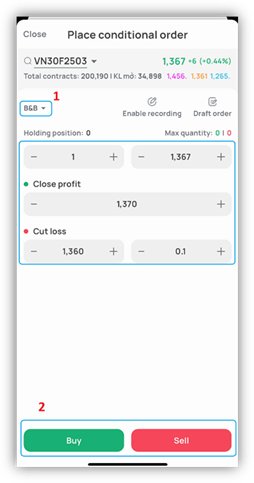
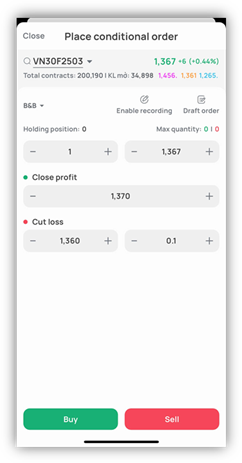
* Adding ab Conditional Order
The steps are exactly the same as you do with the ordinary orders
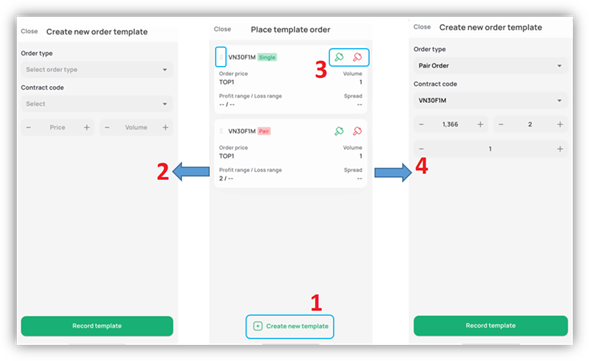
* Create the template and place the order
From the ordinary order screen, tap the template order
- Step 1: Create a new template order
- Step 2: Enter the order information
- Step 3: Tap on blue/red Hammer icon to go to the template order screen
- Step 4: Check the order information before placing it to the system
* Other features
- Reposition order templates: Tap on the icon  and move up/down
- Delete order templates: Tap and hold the order template, choose Delete
There are three ways to view futures order book:
- From Place Order screen, tap on “View details”
- From the underlying order book screen, tap on the icon  to switch to the Derivatives Trading
- From the Feature screen, choose Transaction and Market, tap on Future order book
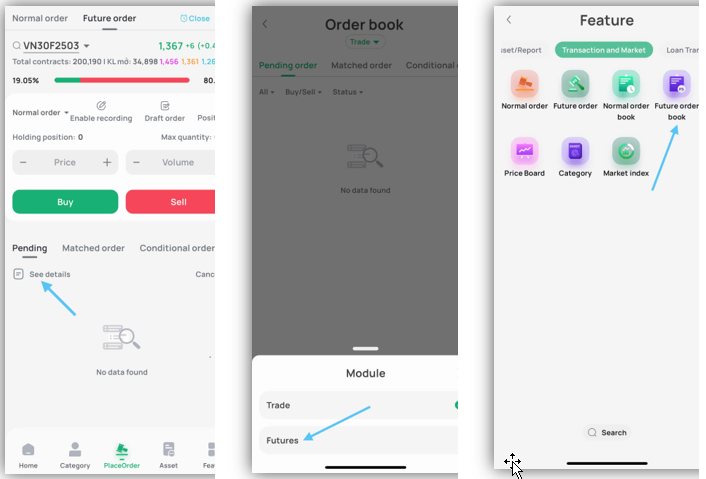
The Future Order Book comprises the following tabs: Pending orders, matched/traded orders, conditional orders and placed orders. In each tab, tap on the icon  next to each order to view its details
- Pending orders: Show ordinary orders and conditional orders activated in the day. These orders are in the status: Pending for being sent, sent or partially traded. You can cancel/modify pending orders (Conditional orders can be cancelled only)
- Matched orders: Show traded orders in the day
- Conditional orders: Show conditional orders placed and their status in the chosen timeframe (one week, one month, three months, six months and one year or choose your own timeframe in the icon  )
)
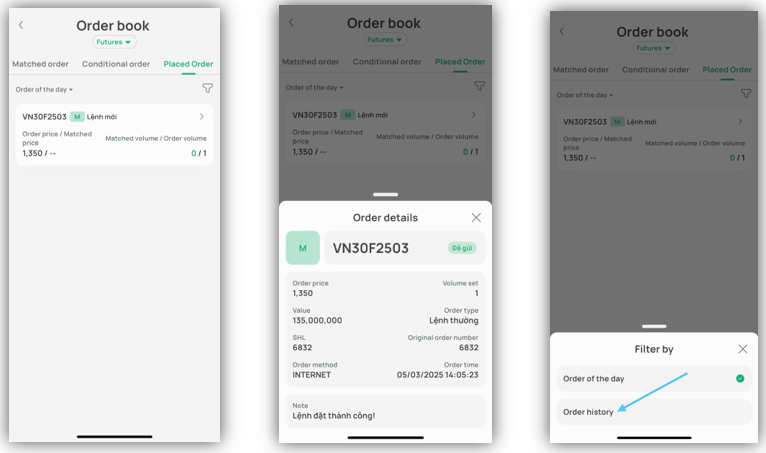
- Placed orders: Show orders in the day.
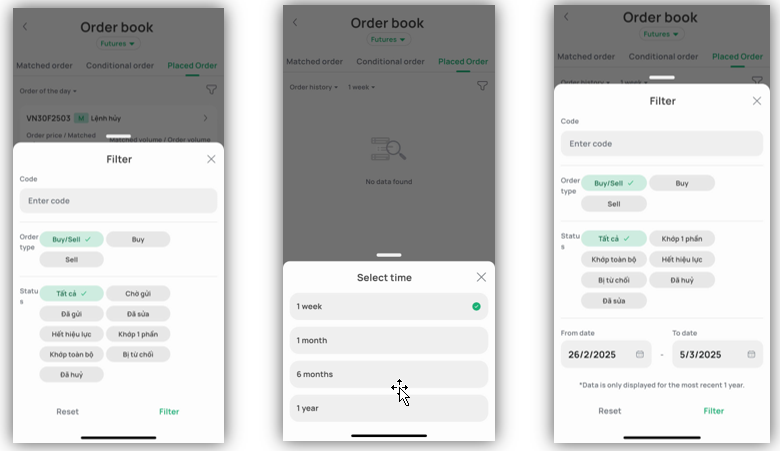
+ Today’s orders: Display orders placed in the day. You can filter by contract code, buy/sell or status by tapping on the icon . You can switch to view the order history by tapping the icon  and select Order History
+ Order History: Display orders placed by the timeframe of one week, one month, six months, one year (not show today’s orders). You can filter by contract code, buy/sell or timeframe by tapping on the icon .
Make an order cancellation/modification in the Order Book section
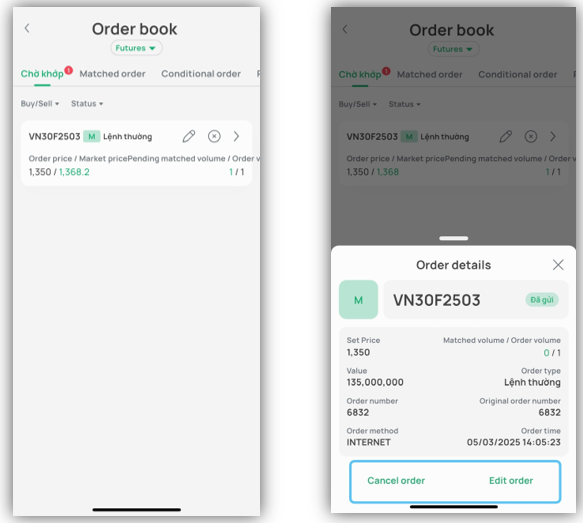
+ Modify the order: Tap the icon  in Pending Orders tab or open order details, then select “Edit order”
+ Cancel order: Tap icon icon  to cancel an order or open order details and select “Cancel order”
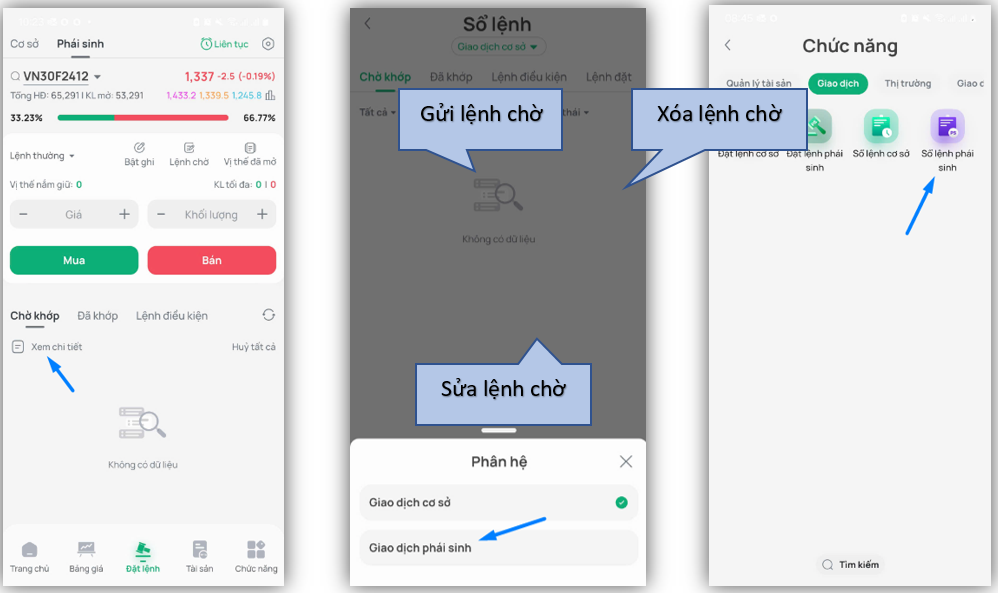
Method 1: You can cancel/modify a derivatives order from the Place Order
- On the Pending Order List, you can cancel, edit, delete, or send a pending order.
Method 2: You can cancel/modify a derivatives order from the Derivatives Order Book
- You can view the derivatives order book in one of 3 ways:
+ From the Derivatives Order-Placing screen, select “View Details”
+ From the Base Order Book screen, click the icon  to switch to the Derivatives module
+ From the Function List screen, on the Buy/Sell/Market tab, select “Derivatives Order Book”
The Derivatives Order Book screen includes the following tabs: Pending Orders, Orders Matched in the Session, Conditional Orders, and Intraday Orders. On each tab, you can click the button  on any order to view its detailed information.
Pending Orders Tab: displays regular orders and conditional orders activated during the session. These orders have a status of pending, sent, or partially matched. You can cancel/modify orders that are pending (a Conditional Order can only be canceled)
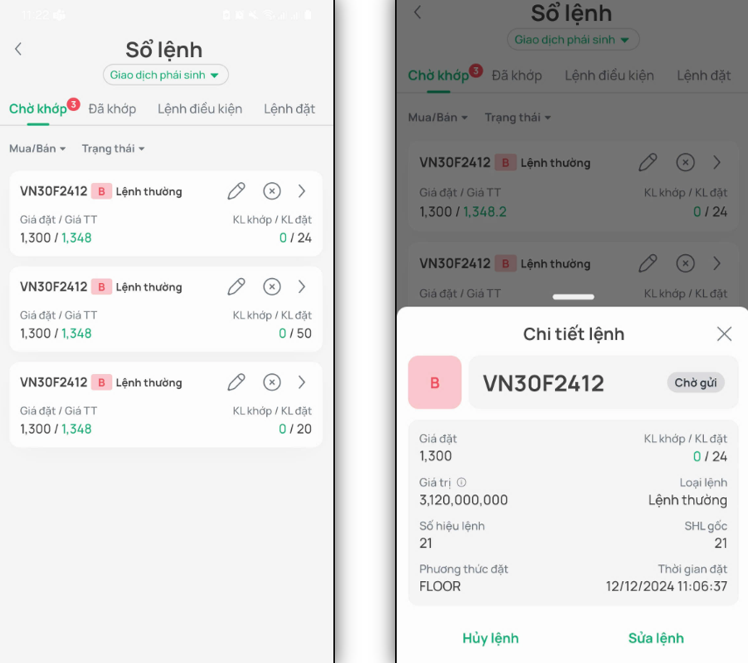
- Modify Order: You can modify an order in the Order Book by clicking the icon  on the Pending Orders tab, or by opening the Order Details and selecting “Modify Order.”
- Cancel Order: You can cancel an order in the Order Book by clicking the icon  . on the Pending Orders tab, or by opening the Order Details and selecting “Cancel Order.”
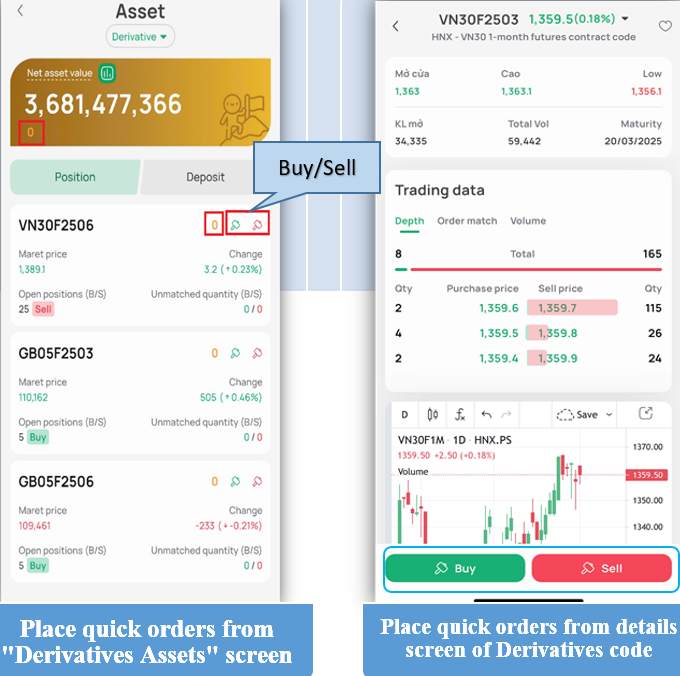
You can place quick orders in one of the following two ways:
Method 1: Place a quick order from the "Derivatives Assets" screen. To view detailed asset information for the Derivatives module, go to the Assets screen and select the "Derivatives" tab/module.
Method 2: Place a quick order from the Derivatives Symbol Details screen. To view details for a specific derivatives symbol, go to the Price Board screen and filter by "Derivatives".