

If you wish to update or supplement your personal information, or register for or cancel FPTS services, please visit an FPTS Head Office, Branch, or Transaction Office in person and present your Citizen Identity Card (CCCD) or Identity Card (ID Card) to complete the requested changes or service registration.
If you are changing your name or date of birth, you must also provide an official confirmation of the change issued by the competent authority.
If you are an institutional customer and wish to update your account information, please contact FPTS Customer Service for assistance.
For FPTS business hours, please click here.
You can update your contact phone number, email address, and mailing address online through the EzTrade Online Trading platform by following the steps below
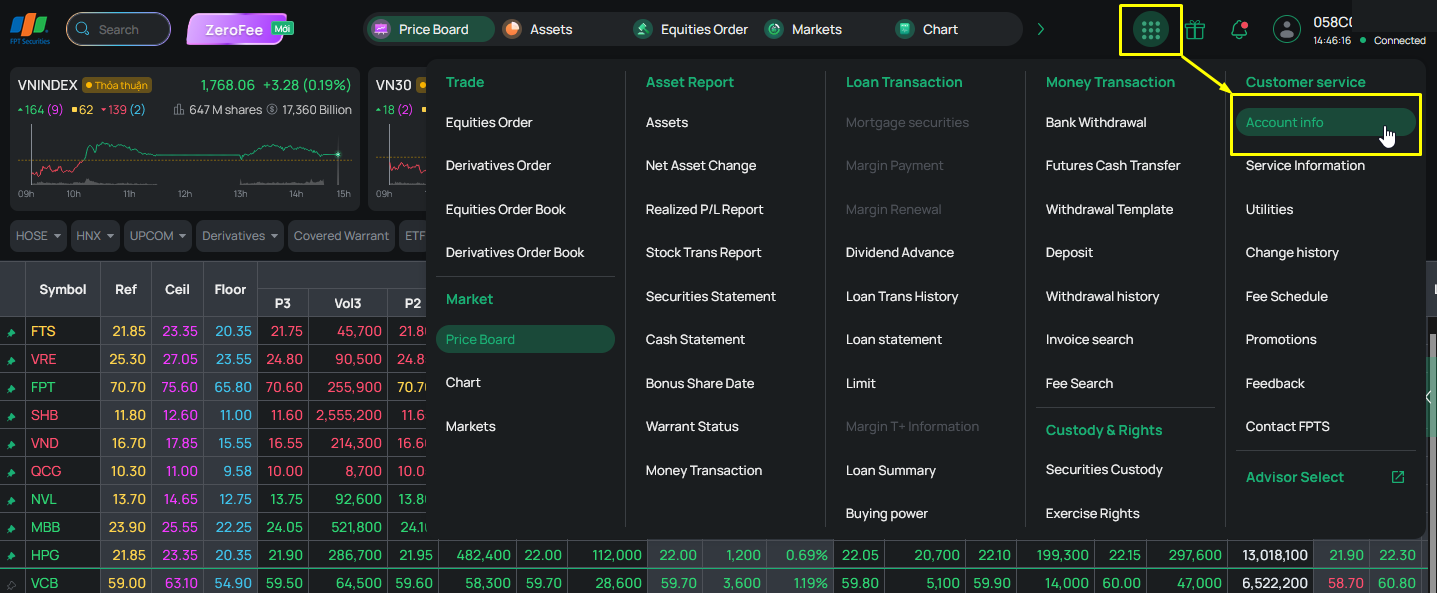
Step 1: Log in to your EzTrade Online Trading account. From the toolbar, click the "Function List" button in the upper-right corner of the screen, then select "Account Information”
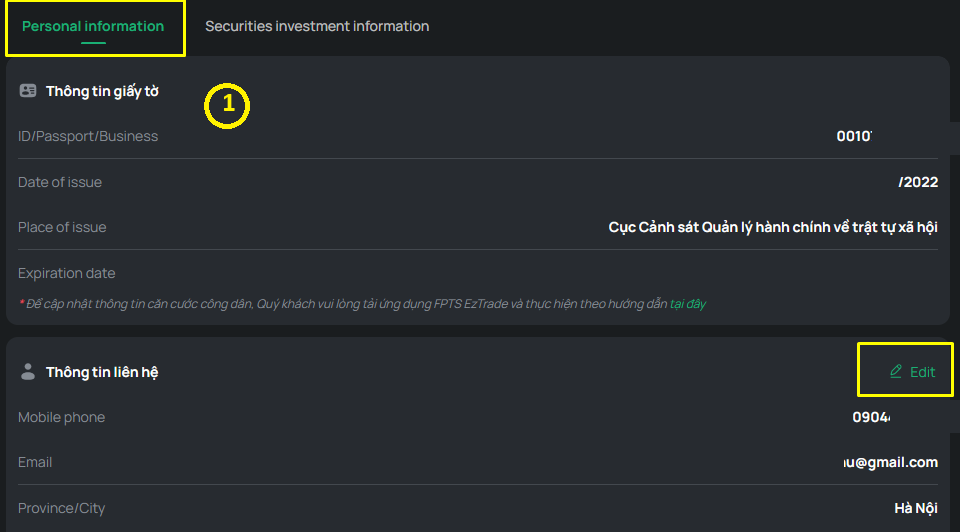
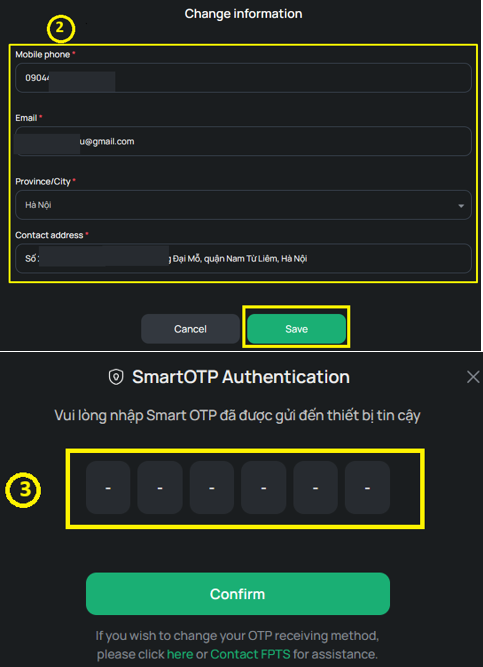
Step 2: Click "Edit" and update your contact information. Then click "Save Changes" and enter the OTP to confirm the update.
Note: To update your Citizen Identity Card (CCCD) or Identity Card (ID) information, please use the EzTrade mobile app. Detailed instructions are available here.
You can register for or cancel the following services online: Derivatives Trading, Margin Trading by Loan, Margin Trading by Buying Power, Cash Advance on Securities Sales, Investment Advisory, and Self-Directed Trading by following the steps below.
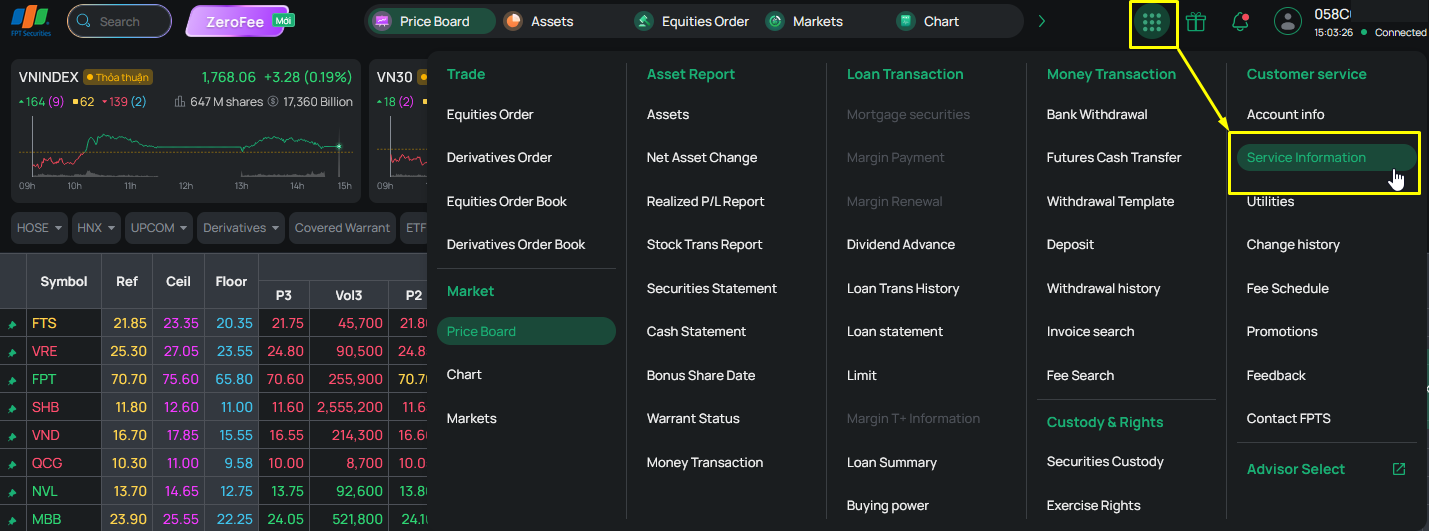
Step 1: Log in to your EzTrade Online Trading account. From the toolbar, click the "Function List" button in the upper-right corner of the screen, then select "Services”
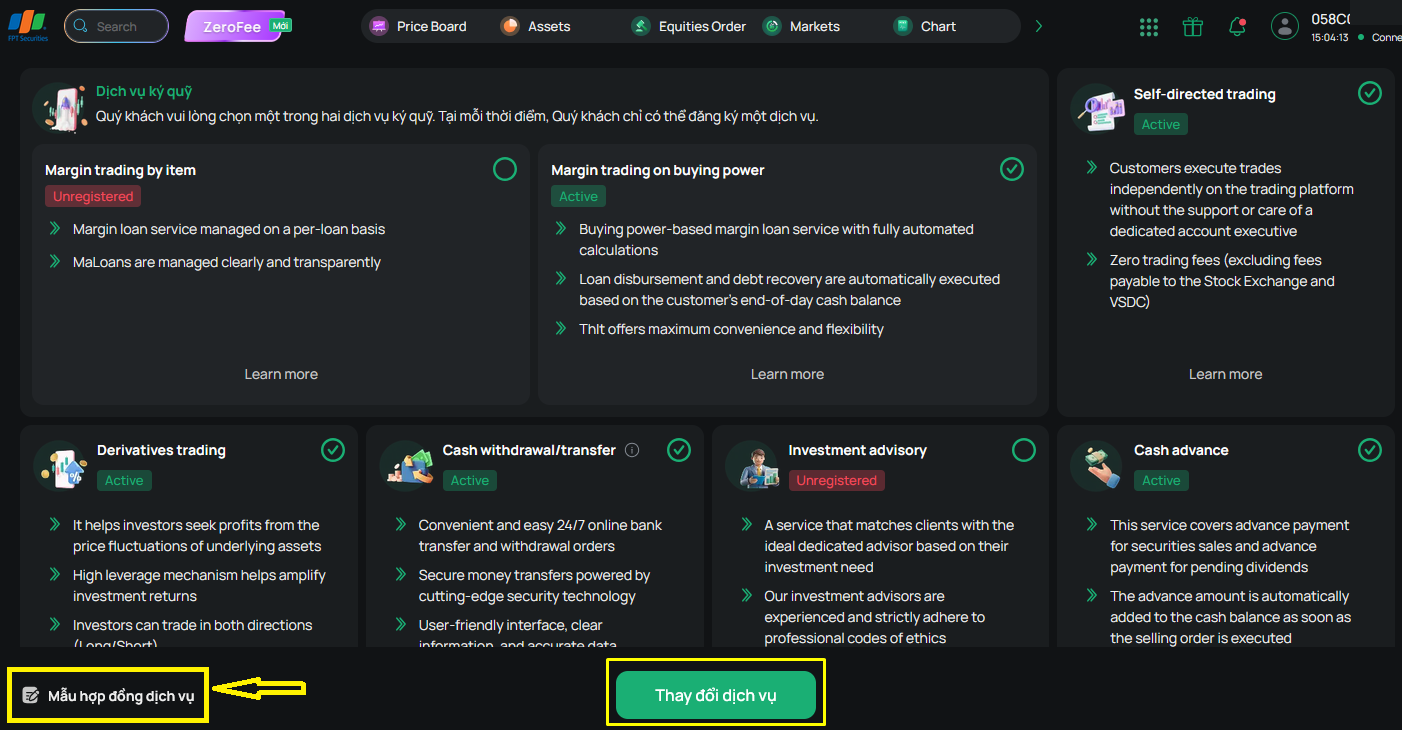
Step 2: Select or deselect the services you wish to register for or cancel, then click "Update Services."
For more information about each service, please click here or refer to the "Service Agreement Template" located at the bottom left of the screen.
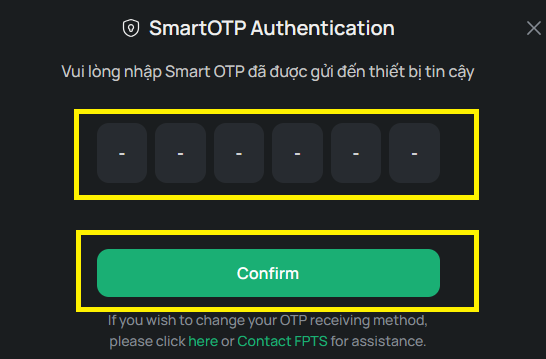
Step 3: Enter the OTP to confirm your request. Once the system displays a successful update message, your service change request will be marked as Pending Approval. The changes will take effect on the next business day. If you need the changes to take effect on the same day, please contact FPTS Customer Service at 1900 6446 and press 1 for assistance.
Note:
- If you have not yet signed the relevant service agreement, please print the agreement, sign it with your full name, and send it by express mail to an FPTS Head Office or Branch. Alternatively, download and log in to the EzTrade mobile app to complete the electronic agreement (EContract).
- If you prefer to trade independently without support from an Investment Advisor, you may choose Self-Directed Trading to optimize your trading fees (please refer to the FPTS fee schedule here). If you later wish to receive professional investment advisory services again, you can select and register an appropriate advisor through EzAdvisorSelect. (Investment Advisory is a paid service.)
- If you switch to Self-Directed Trading before 7:00 PM on T0, the new fee schedule will take effect on the next business day (T+1). Requests submitted after 7:00 PM or on public holidays will take effect on the following business day (T+2).
- Under Self-Directed Trading, you will manage your trading activities independently without assistance from an Investment Advisor. If you require support regarding FPTS products or services, please contact FPTS Customer Service at 1900 6446 and press 1 for assistance.
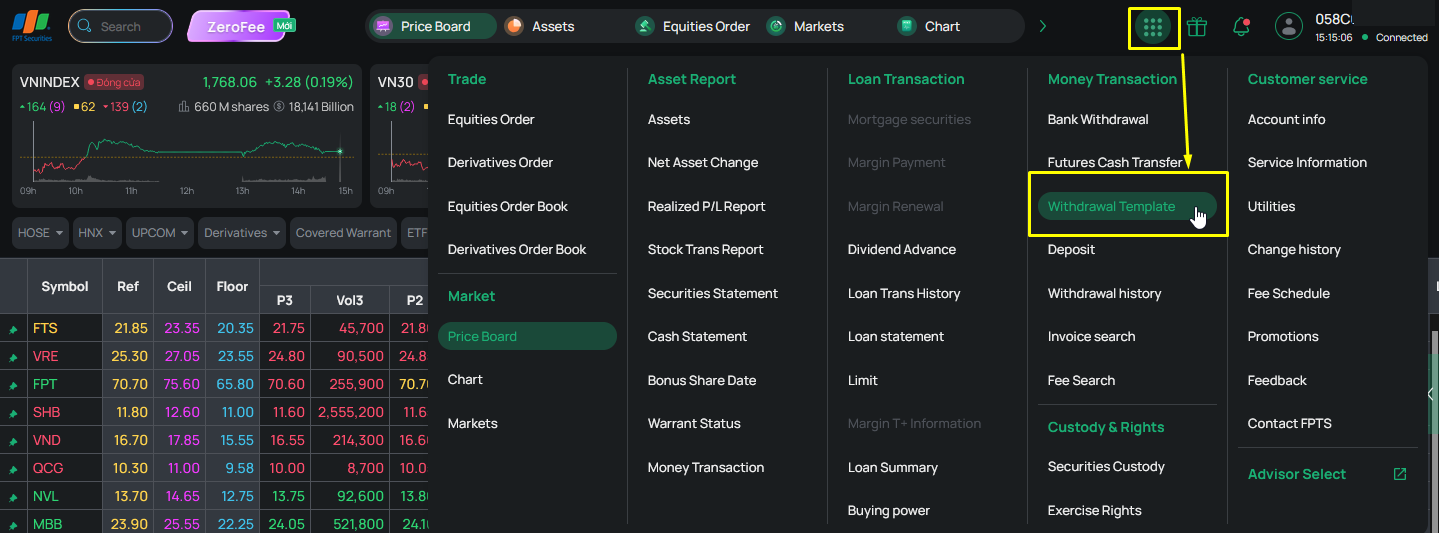
Step 1: Log in to your EzTrade Online Trading account. From the toolbar, click the "Function List" button in the upper-right corner of the screen, then select "Transfer Templates”
Step 2: Click "Create Template." Enter the required information for the transfer template, then click "Save Template”.
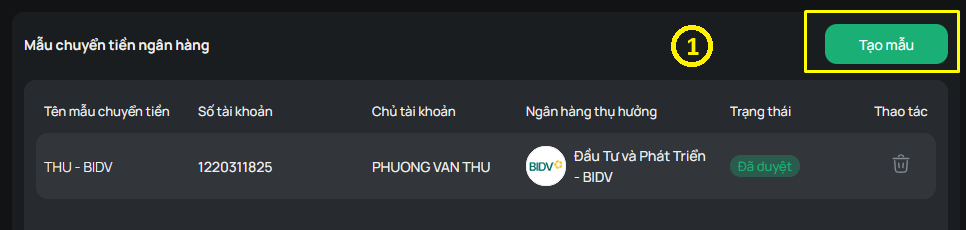
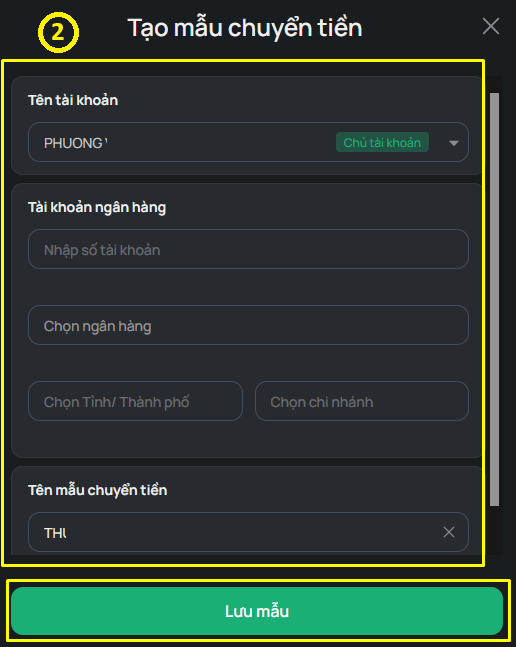
Step 3: Enter the OTP to complete the creation of the new transfer template.
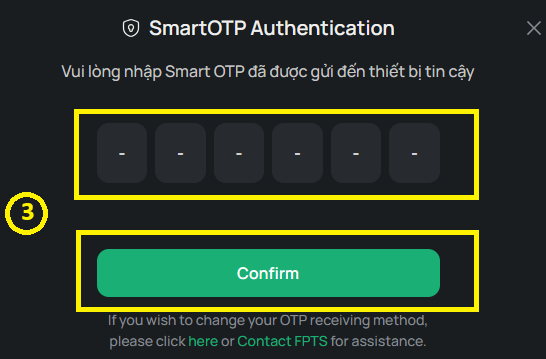
Note:
- If you use a Token Card for transaction authentication, you may register transfer templates with unrestricted beneficiaries.
- The changes will take effect on the next business day. If you need the changes to take effect on the same day, please contact FPTS Customer Service at 1900 6446 and press 1 for assistance.
Step 1: Log in to your EzTrade Online Trading account. From the toolbar, click the "Function List" button in the upper-right corner of the screen, then select "Utilities.”.
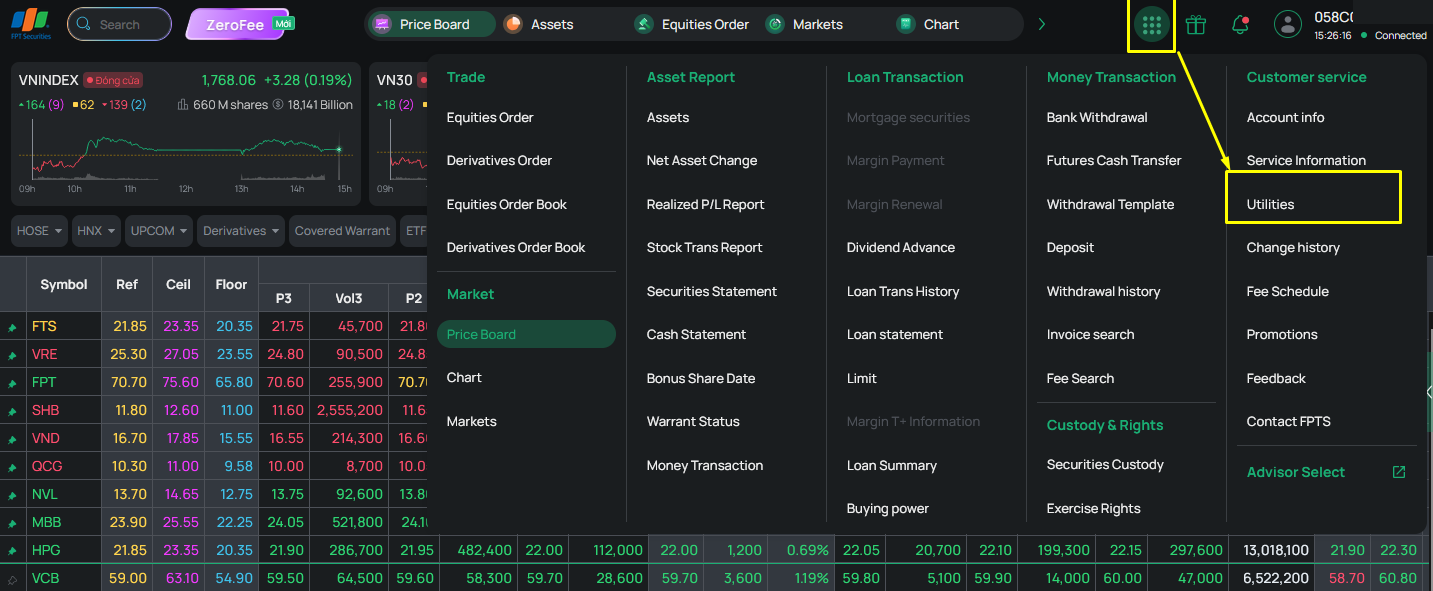
Step 2: Select your preferred notification methods, then click "Update Utilities."
You may choose to receive notifications via SMS and/or Email.
- For SMS notifications, FPTS offers both free and paid notification packages.
- Free package includes: Order execution/order placement notifications for floor and telephone orders; Corporate action notifications; Margin trading service notifications; Other notifications from FPTS
- Paid package is available at VND 11,000/month (VAT included) and includes: Beginning-of-day account balance notifications; Order execution/order placement notifications for online orders; Deposit and withdrawal notifications
- For Email notifications, you may subscribe to: Daily trading confirmations (applicable to floor and telephone orders); Monthly account statements
In addition, if you register for SMS OTP as your transaction authentication method (used for placing trading orders), you must subscribe to the SMS OTP service, which is charged at VND 33,000/month (VAT included).
OTP messages used for securities depository services, cash deposits, subscription rights execution, account information updates, utility settings, service updates, and authentication method changes remain free of charge.
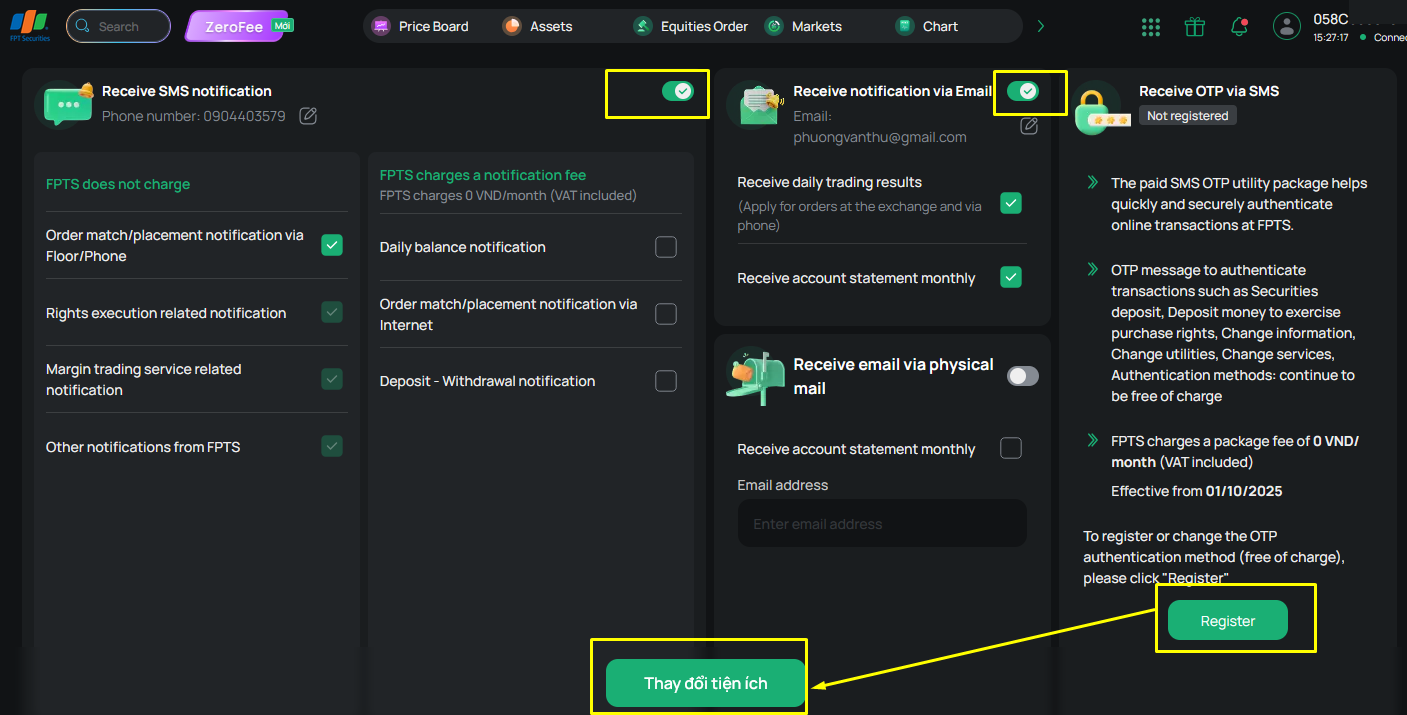
Step 3: Enter the OTP to confirm the changes. A confirmation message will be displayed once the update is successful.
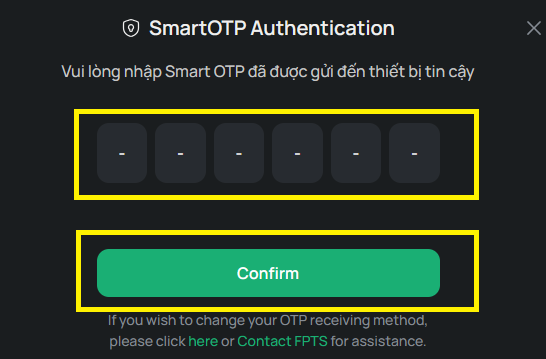
The changes will take effect on the next business day. If you need the changes to take effect on the same day, please contact FPTS Customer Service at 1900 6446 and press 1 for assistance.
The Utilities section also provides access to the following functions: Account Information, Service Management, Utility Settings, Account Change History, Fee Schedule, Promotions, Feedback, Contact FPTS.
1. Check Your Information
- Only domestic individual accounts are subject to the account identity verification requirement. The standardized information after a Citizen Identity Card/Identity Card (CCCD/ID) or identity change includes: full name, CCCD/ID number, date of birth, date of issue, place of issue, expiry date, and gender.
- If the information on your account does not match your CCCD/ID, please update your information on the Update CCCD/ID screen and complete the identity verification of your securities trading account
- If the information on your account already matches your CCCD/ID, please complete the identity verification of your securities trading account on the Electronic Identity Verification screen or Sign Electronic Contract.
2. Instructions for Updating Your CCCD/ID and Verifying the Identity of Your Securities Trading Account
Step 1: Access the Identity Verification screen
+ Method 1: Access from the Account Information screen:
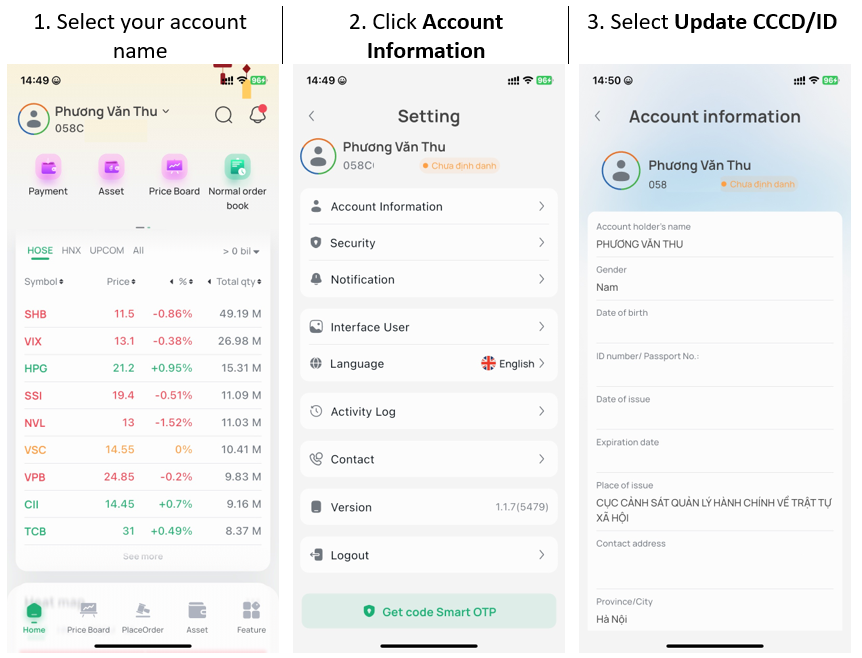
+ Method 2: Access from the Electronic Identity Verification screen:
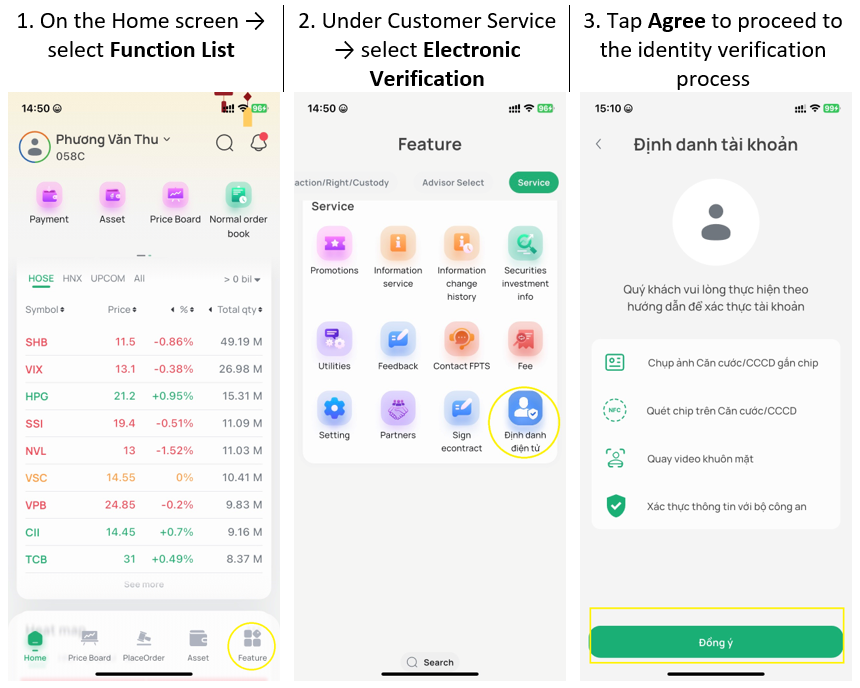
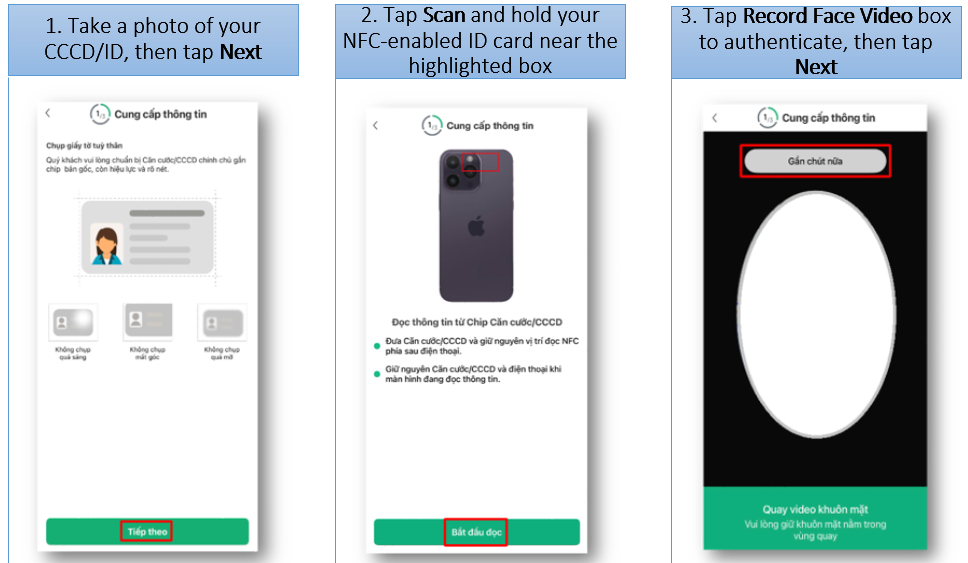
Step 2: Take a photo, scan NFC, and record a face video
Note:
For an account opened via eKYC, you only need to perform the NFC scan when verifying your identity from the Electronic Identity Verification screen. If the CCCD/ID photo or face video does not meet the requirements, the system will ask you to try again.
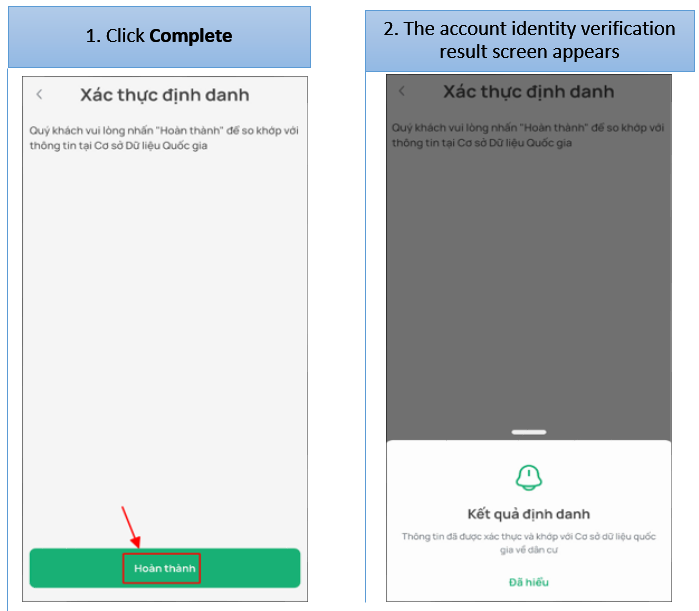
Step 3: Click Complete to finish the electronic identity verification process.