


This method allows you to place an order in person at an FPTS trading floor or branch using an order form; FPTS staff will enter the order into the system based on the information on your order form
Please visit an FPTS Head Office, Branch, or Transaction Office to place an order at the trading floor.
- For individual customers:
- Present your original Citizen Identity Card (CCCD)/Identity Card (ID).
- If an authorized representative comes to the trading floor, they must present their original Citizen Identity Card (CCCD)/Identity Card (ID)
- For institutional customers:
- If the institution's legal representative or an authorized representative comes to the trading floor, they must present their original Citizen Identity Card (CCCD)/Identity Card (ID)
- If the institution assigns another individual to bring the order form to the trading floor, the following documents are required:
- A letter of introduction from the institution: stating the full name and Citizen Identity Card (CCCD)/Identity Card (ID) number of the assigned person, the purpose of the visit, and bearing the institution's signature and seal
- Citizen Identity Card (CCCD)/Identity Card (ID) (of the assigned person): Original
- Order form: Original (signed and sealed).
This method allows customers using the user authentication device - Token Card to place orders by telephone.
Call the hotline 1900 6446, extension 3; an FPTS staff member will verify your identity and enter the order according to your request
You can place orders online via the EzTrade website or the EzTrade mobile trading application
To place an order via the EzTrade website, follow these steps:
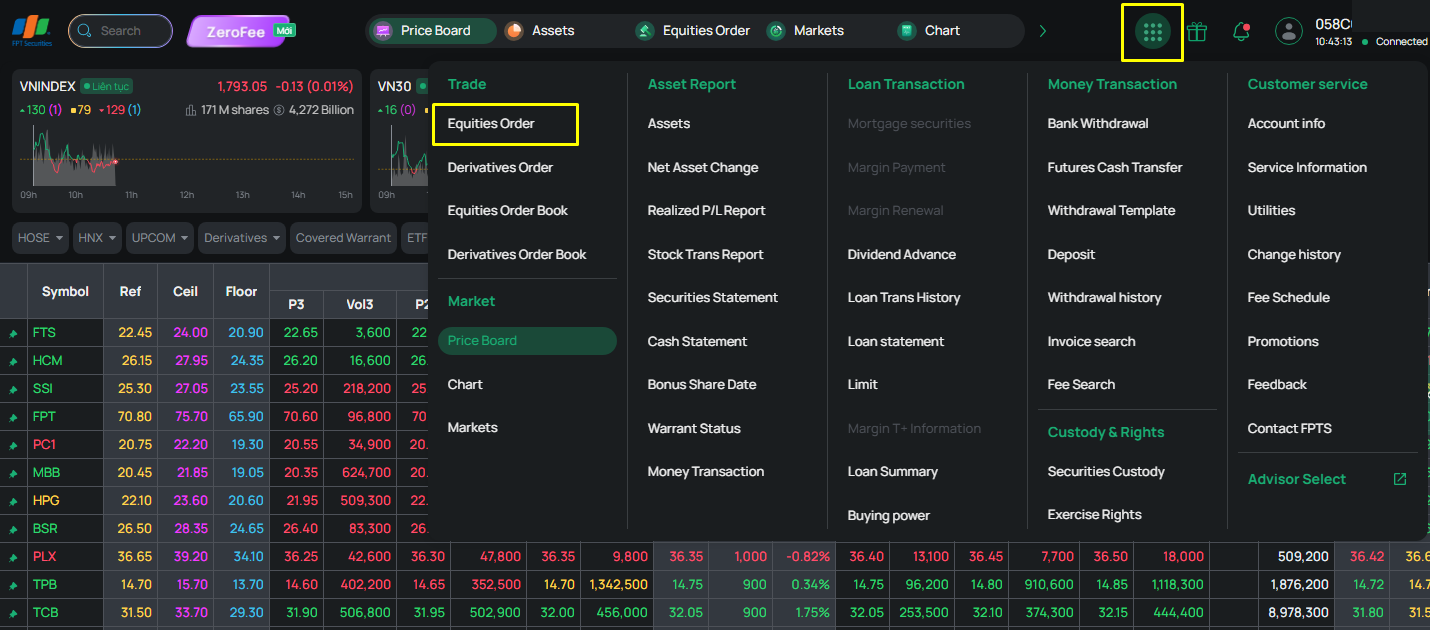
You can place buy/sell orders using the standard order-placing screen or the quick order-placing screen, as follows:
- Standard order-placing screen: Accessible from Function List → Base Order Placing. You can choose one of two display formats:
- Horizontal layout
- Vertical layout
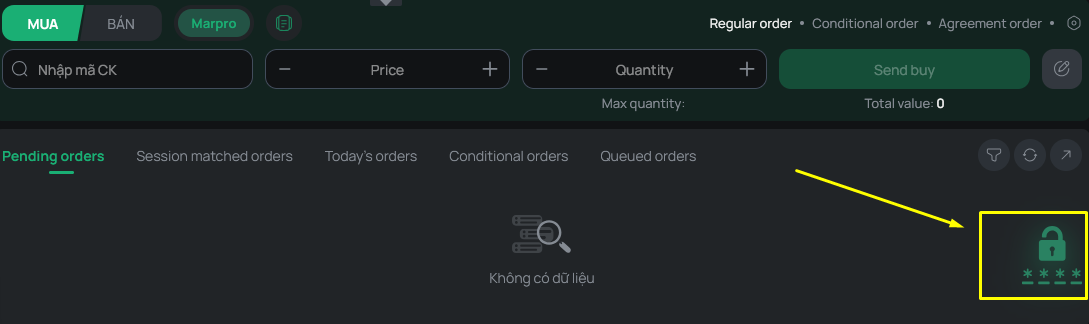
- When you access the order-placing screen, you can complete OTP authentication by clicking the icon in the lower-left corner of the screen, as shown below
1. Horizontal Order-Placing Screen
The horizontal order-placing screen consists of 3 areas, as shown below:
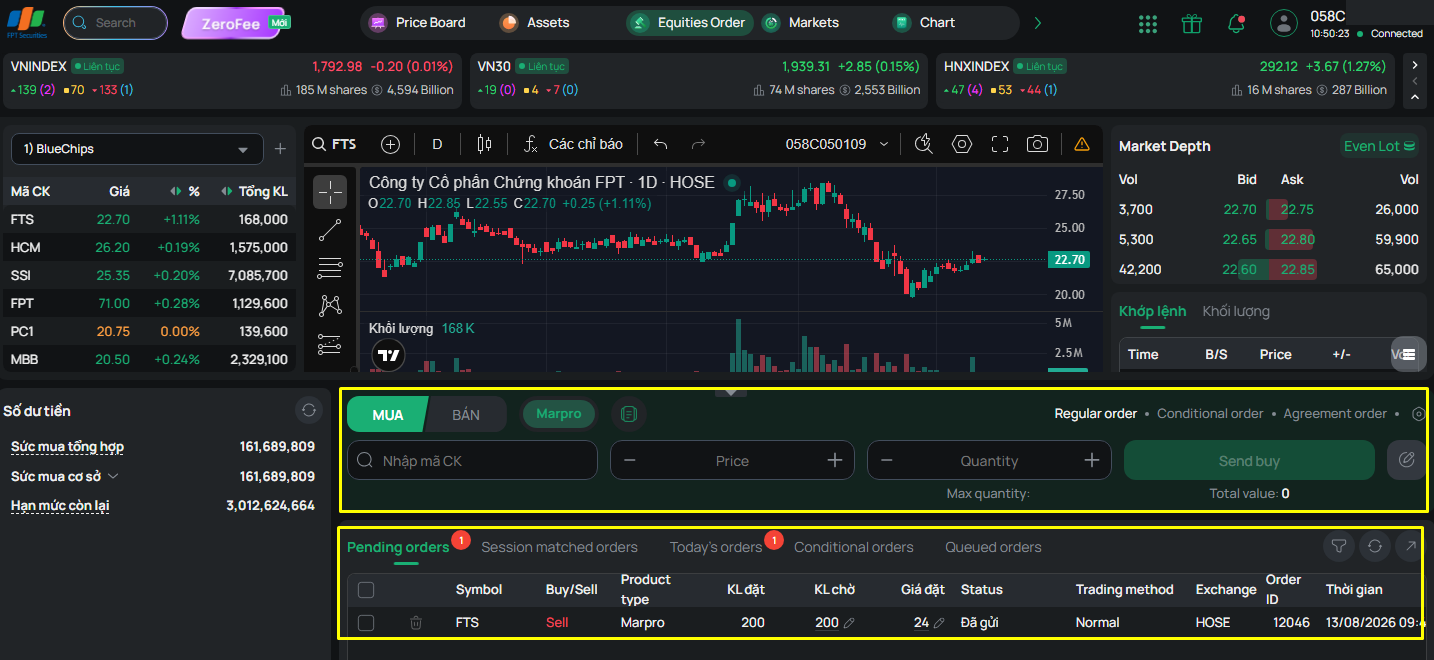
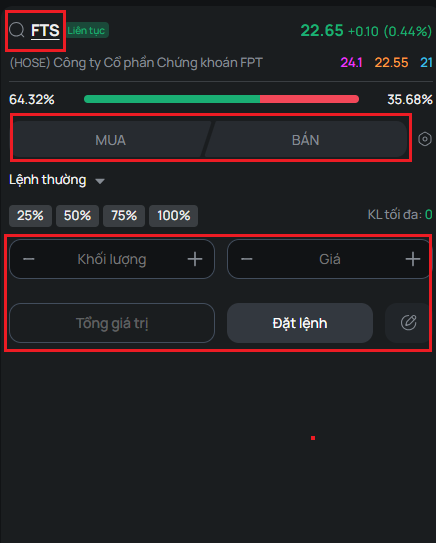
In the “Order” area, you must enter the following information: Order Type Buy/Sell, Securities Symbol, Volume, and Price

- Buy/Sell Order Type:
+ When you select Buy, the system will display the remaining amount available for purchase in the “Cash Balance” table. The “Cash Balance” table does not refresh automatically: you must click the refresh button on the “Cash Balance” table or refresh the EzTrade website to update the cash balance.

+ When you select Sell, the system will display the “Stock Balance” table with a list of securities symbols and your corresponding remaining balances. A securities symbol for which you have placed a sell order for the entire balance (including pending orders on the Pending Order List) will be hidden from the “Stock Balance” table

- “Symbol” field: Enter the securities symbol you want to buy, or select the securities symbol you want to sell from the Stock Balance table.
- “Volume” field: Enter the volume for your order.
+ For a buy order: The system automatically calculates the maximum quantity you can buy, for your reference, based on your remaining available funds for that securities symbol.
- When you have entered the securities symbol but not yet the Price: The maximum quantity displayed is the maximum quantity that can be purchased at the ceiling price of that symbol.
- When you have entered both the securities symbol and the Price: The maximum quantity displayed is the quantity that can be purchased at the price you entered. Therefore, you should enter the Price first to see the maximum purchasable quantity that most closely matches your available funds
+ For a sell order: The system will display the maximum quantity of securities you can sell
- “Price” field: The unit is Vietnamese Dong x1000. For example: If you want to place a Buy order at 41,200 VND, simply enter 41.2.
- You can use the mouse or the Tab key to move between the information fields.
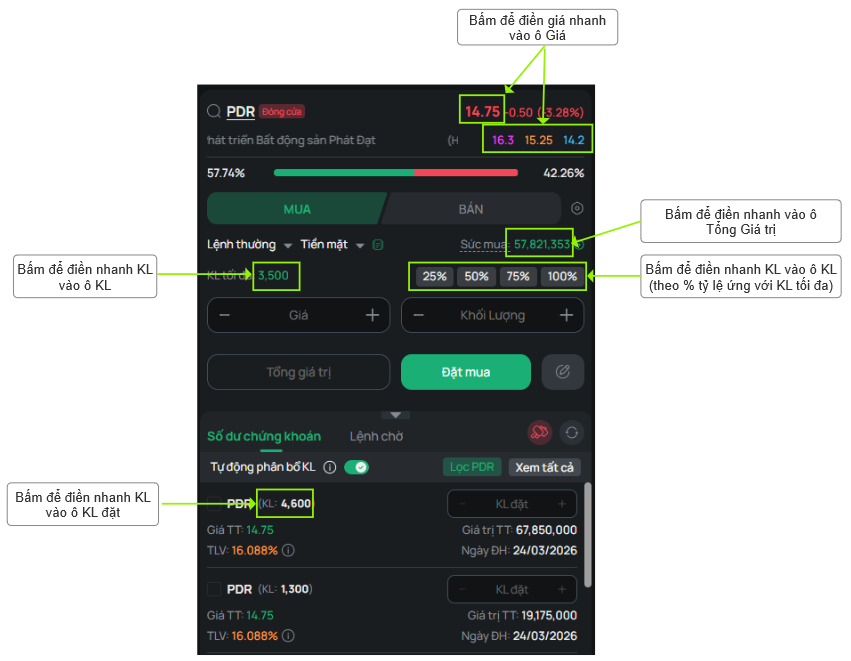
The order-placing screen supports the following quick actions to assist with order entry:
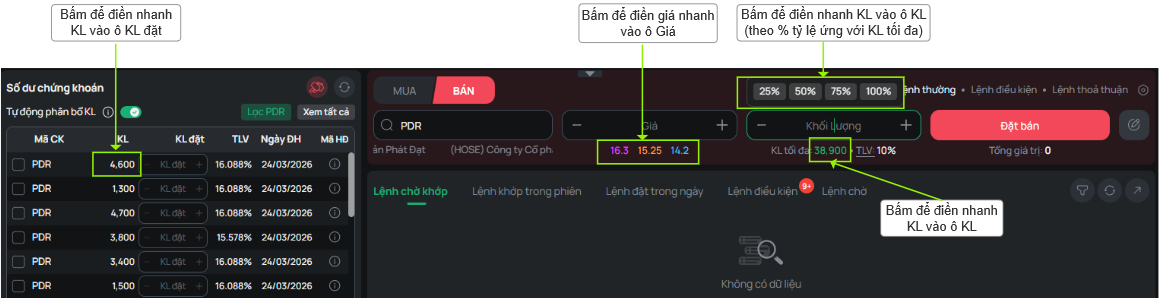
Note: For your order to be sent to the system successfully, your account must satisfy the following balance requirements:
- For an account that does not use Margin:
+ Buy order: Tradeable cash balance ≥ Buy order value + Buy order fee
+ Sell order: You must have sufficient securities balance to place the order: Order quantity ≤ Maximum quantity that can be placed
- For an account using Margin Trading by Item - EzMargin:
+ Buy order: You can choose between buying with Cash or buying on Margin. Your account must satisfy both of the following conditions at the same time:
- (1) Tradeable cash balance ≥ Original held cash of the Buy order + Buy order fee
- (2) Remaining margin limit ≥ Margin loan of the Buy order
- The maximum purchasable quantity will be calculated based on both of the above conditions
+ Sell order: FPTS provides the Automatic Quantity-Splitting feature (applicable to accounts using Margin Trading by Item - EzMargin, and board lot accounts): If you select this feature, the system will automatically select the contract(s) to sell, in order of priority:
- Margin securities
- Ordinary securities
- For an account using Margin Trading - EzMarginPro:
+ Buy order: your account must satisfy both of the following conditions at the same time:
- (1) Total buying power ≥ Buy order value + Buy order fee
- (2) Remaining limit ≥ Buy order value + Buy order fee
- The maximum purchasable quantity will be calculated as Min (Total buying power, Remaining limit)
+ Sell order: You must have sufficient securities balance to place the order: Order quantity ≤ Maximum quantity that can be placed
In addition, you can use the multi-symbol sell feature, turn the Record Pending Order feature on/off, or configure the order-placing screen to suit your needs
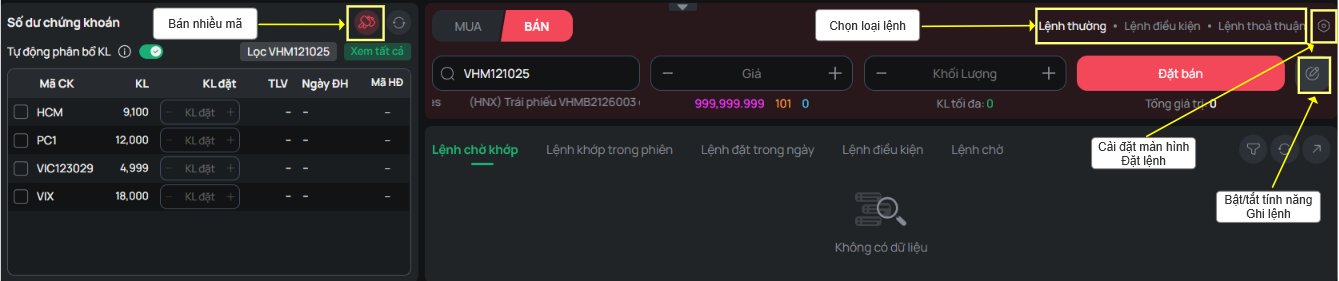
2. Vertical Order-Placing Screen
The vertical order-placing screen consists of 3 areas, as shown below:
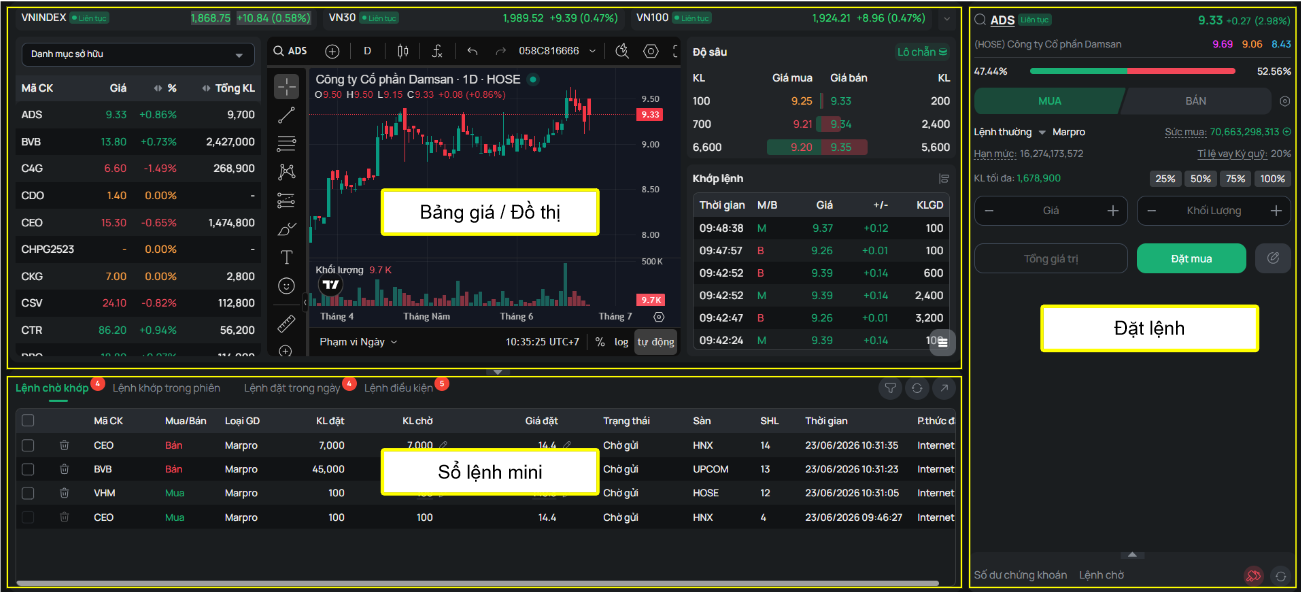
In the “Order” area, you must enter the following information: Order Type Buy/Sell, Securities Symbol, Volume, and Price
The order-placing screen supports the following quick actions to assist with order entry:
In addition, you can use the multi-symbol sell feature, turn the Record Pending Order feature on/off, or configure the order-placing screen to suit your needs
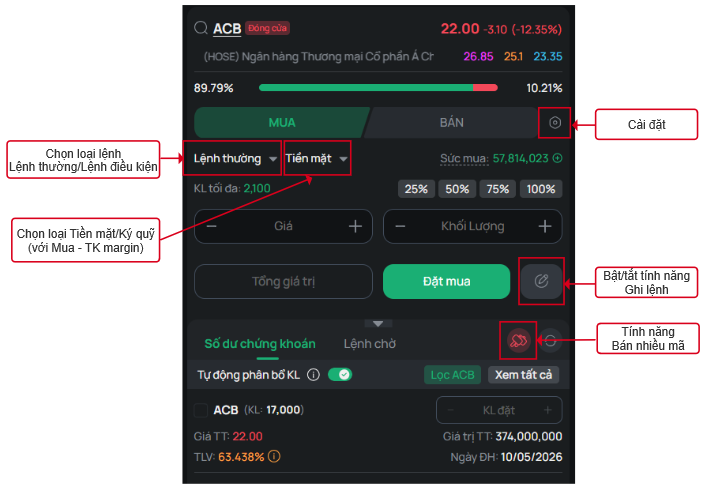
3. Quick Order-Placing Screen
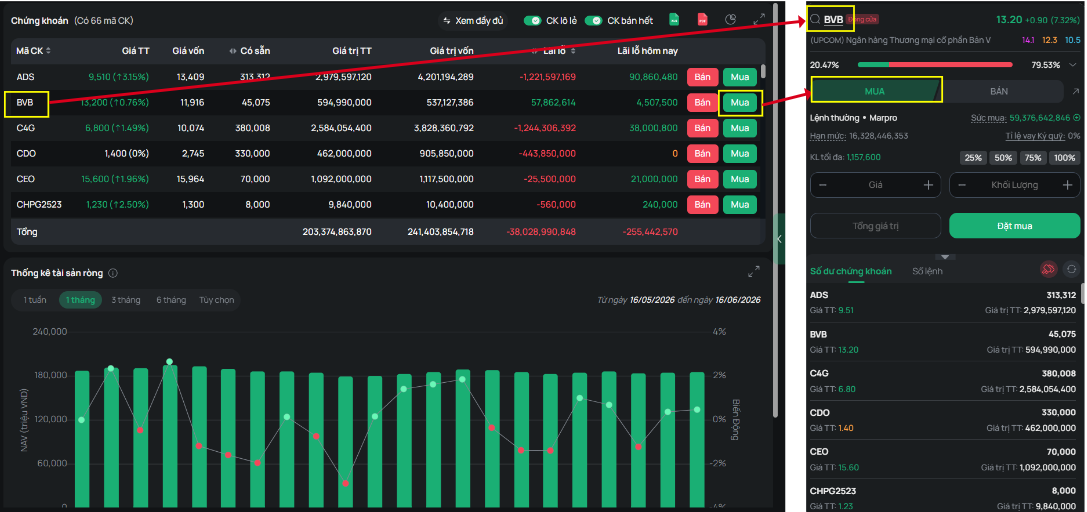
- Quick order-placing screen from the price board: You can open the quick order-placing screen from the price board using one of the actions shown below:
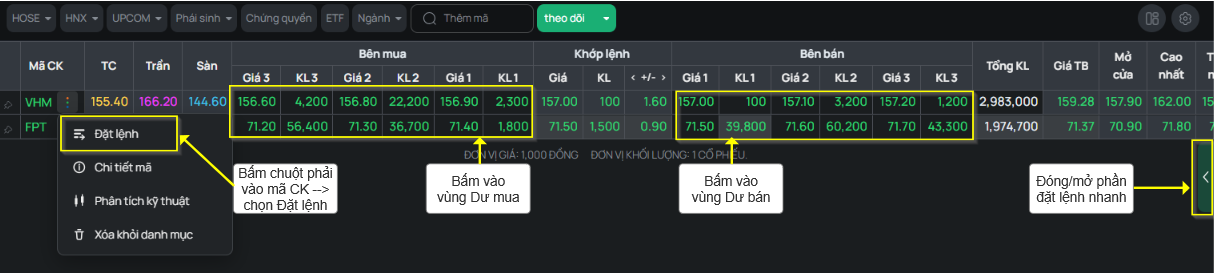
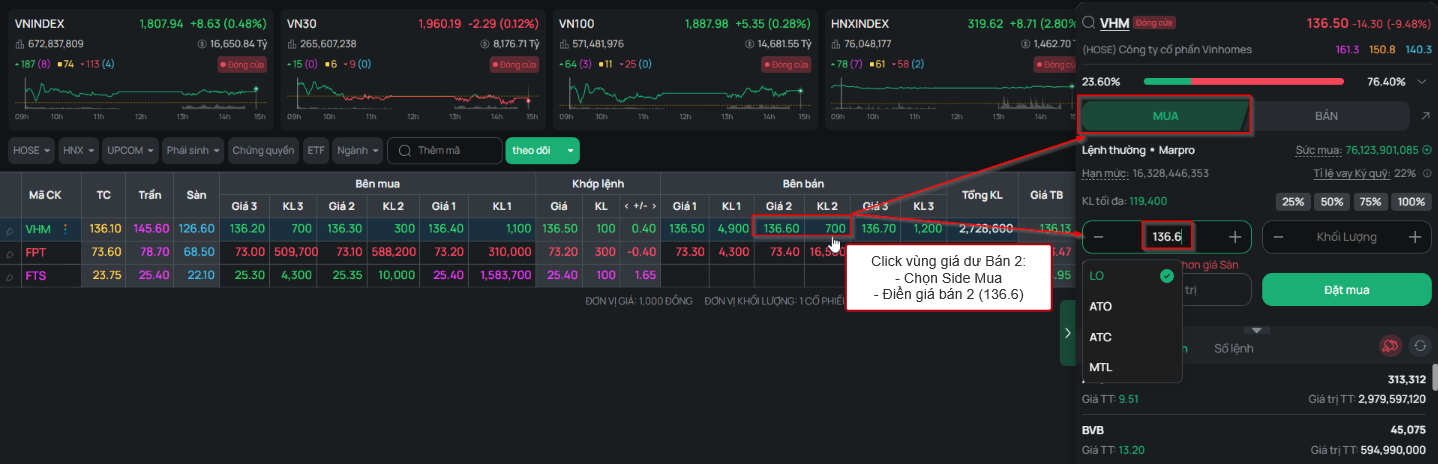
+ When you click the Bid/Ask area on the price board, the order-placing screen automatically fills in the corresponding price and the Buy/Sell type corresponding to the Ask/Bid area you clicked
- Quick order-placing screen from Assets: To open the quick order-placing screen from the Assets screen, click the following icons:
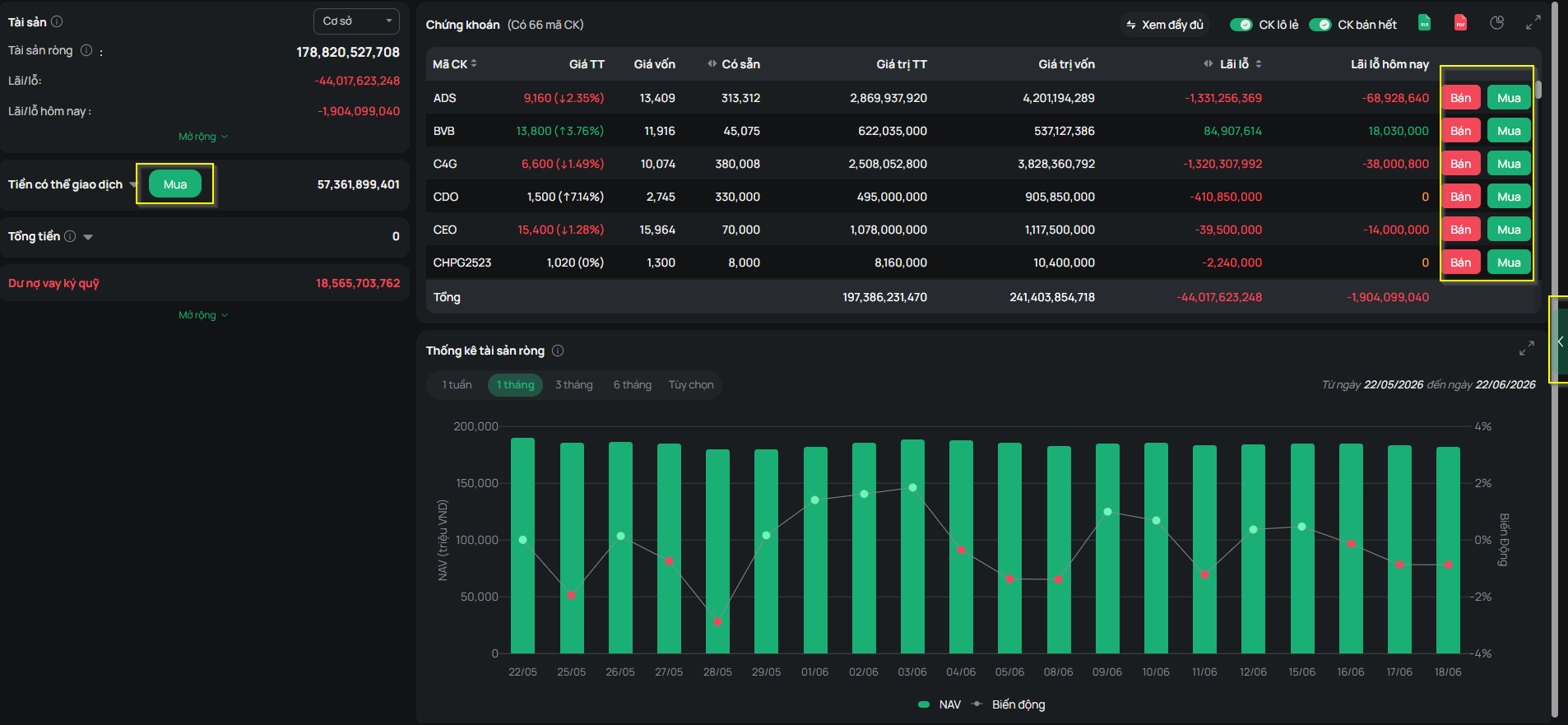
+ Clicking the Buy/Sell buttons in the Securities section automatically selects and fills in the quick order-placing screen with:
- Symbol: the securities symbol for which you clicked the Buy/Sell button
- The Buy/Sell type corresponding to the button you selected
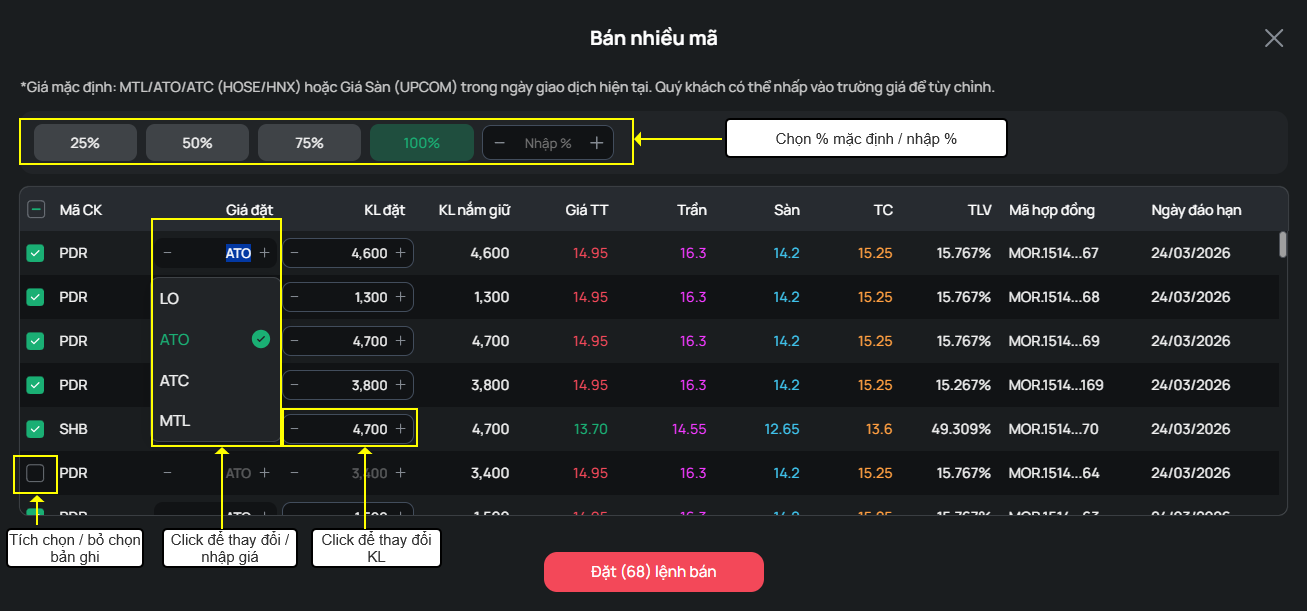
4. Multi-Symbol Sell Feature
- You can open the Multi-Symbol Sell screen from the icon  in the Stock Balance section on the vertical layout, horizontal layout, or quick order-placing screen.
5. Record Pending Order Feature
- You can use the Record Pending Order feature on the horizontal or vertical order-placing screen.
- When this mode is off: After clicking Send, your order is sent immediately. For an order with a Volume greater than 500,000, when you click Send, the system will automatically split the order into orders with a Volume of 500,000 or less.
- When this mode is on: Your order is saved to the “Pending Order List” for you to review and send later if you wish.
+ For an order with a Volume greater than 500,000: when you click Record, the system will automatically split the order into orders with a Volume of 500,000 or less.
+ On the “Pending Order List,” you can:
- Edit the price and volume of each order.
- Delete an order from the “Pending Order List” so it is not sent, by clicking the “Delete” button on the corresponding order row.
- Record multiple orders to the “Pending Order List” (up to 16 orders).
+ When the Record Pending Order feature is on: the record icon is highlighted
+ After successfully recording an order, it will be displayed on the Pending Order screen
- Vertical layout
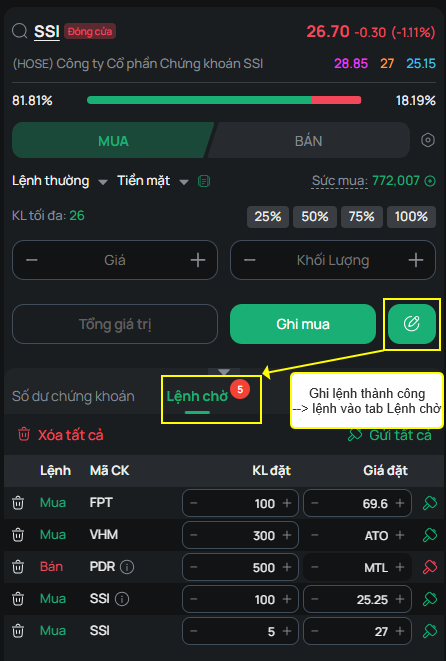
- Horizontal layout
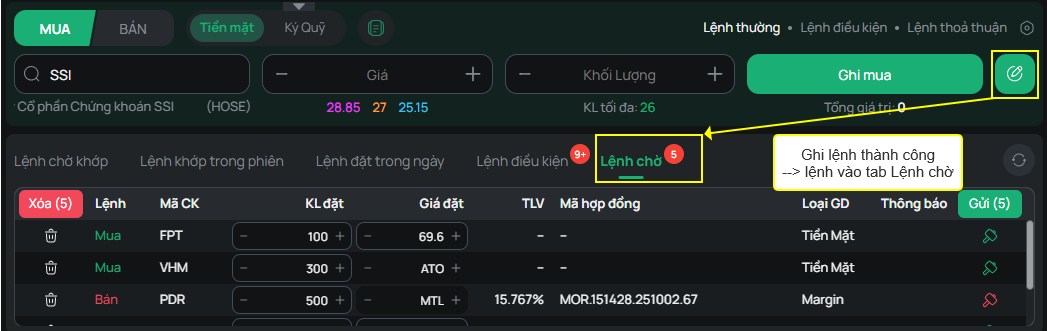
+ Actions available on the Pending Order tab:
- Edit the price and volume: Must comply with the price step/volume step applicable to each type of securities and each exchange
- Send individual orders, or send all
- Delete individual orders, or delete all
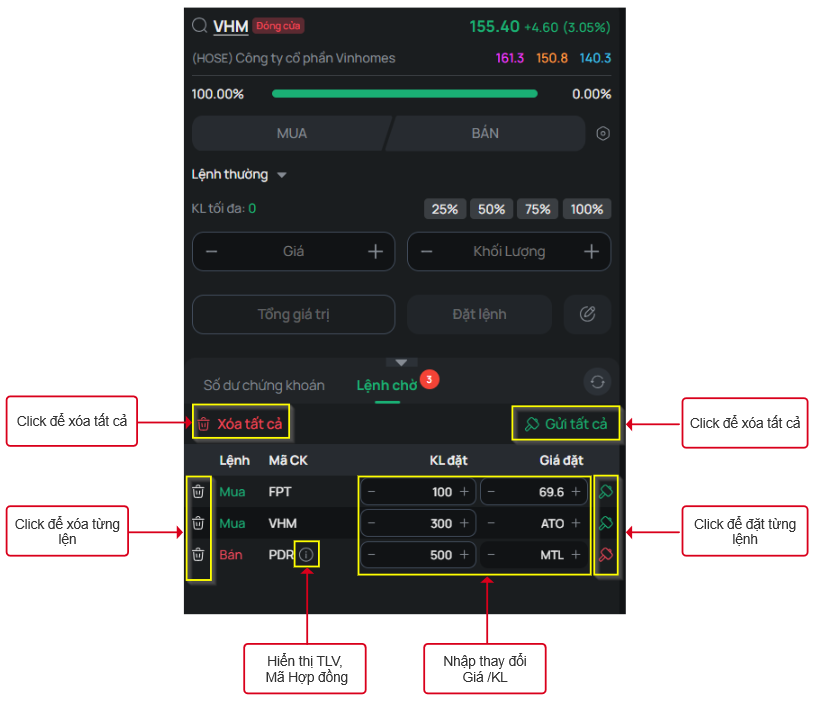
Note: An order recorded to the Pending Order List is saved based on the device on which the account is logged in
6. Configuring the Order-Placing Screen
To configure the order-placing screen, click the icon  on the corresponding horizontal/vertical order-placing screen
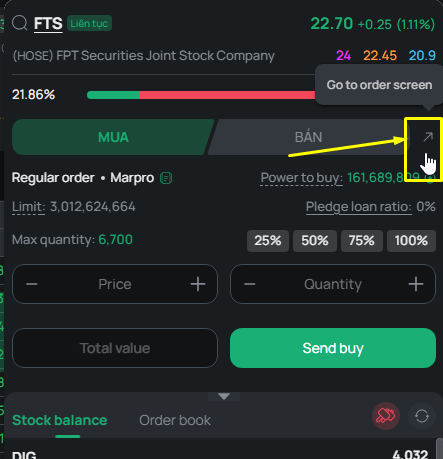
The Settings screen will appear, allowing you to choose the following options as needed:
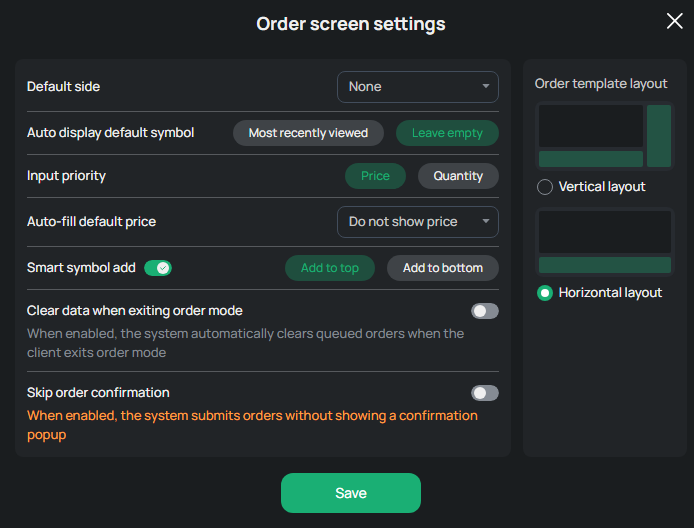
- Display format:
- Vertical layout
- Horizontal layout
- Default Buy/Sell type: sets the default Buy/Sell type displayed when you access the order-placing screen. Options include:
- “None”: The screen will not automatically select a type; you must select Buy or Sell each time you access the order-placing screen. This is the default option.
- “Buy”: The screen will select Buy each time you access the Order-Placing screen.
- “Sell”: The screen will select Sell each time you access the Order-Placing screen.
- Field entry priority:
- Price: Prioritize entering Price before Volume
- Volume: Prioritize entering Volume before Price
- Auto-fill default price: The price will be automatically filled in when you enter a securities symbol, according to your selected option
- “No price displayed” - This is the default option
- “Current price”
- “Best bid”
- “Best ask”
- Smart Symbol Adding: When enabled, the system automatically adds a symbol to your Watchlist when you enter a securities symbol in the Order section; you can choose where the symbol is added in the Watchlist:
- Beginning of the list
- End of the list
- Clear data when Record Pending Order is off: When enabled, the system automatically clears the pending order list when you turn off Record Pending Order mode
- Skip order confirmation: When enabled, the system automatically sends the order without displaying a confirmation pop-up.
Note: These settings are saved per account.